
SEO in an afternoon
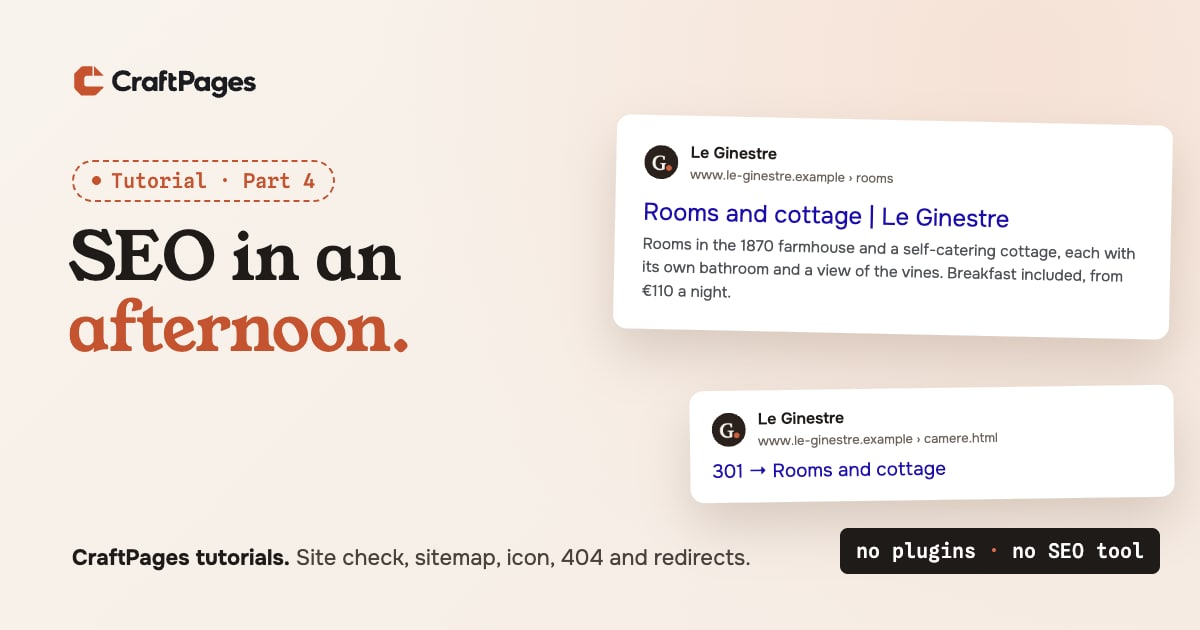
After part 3, Le Ginestre is online and Chiara can see how many people visit. Now she wants more of them to come from Google, and to see the right thing when they do: a clear title, a description that reads well, the little icon next to the result.
"SEO" sounds like a job for a specialist. For a small site it's mostly a checklist, and CraftPages 1.5 puts that checklist on one screen. Here's Le Ginestre's afternoon, from the first check to the last.
Step 1. Run the site check
Click SEO in the sidebar. The Site check at the top reads every page and sorts what it finds three ways: Problems (fix these), To improve (worth doing) and Notes (good to know).
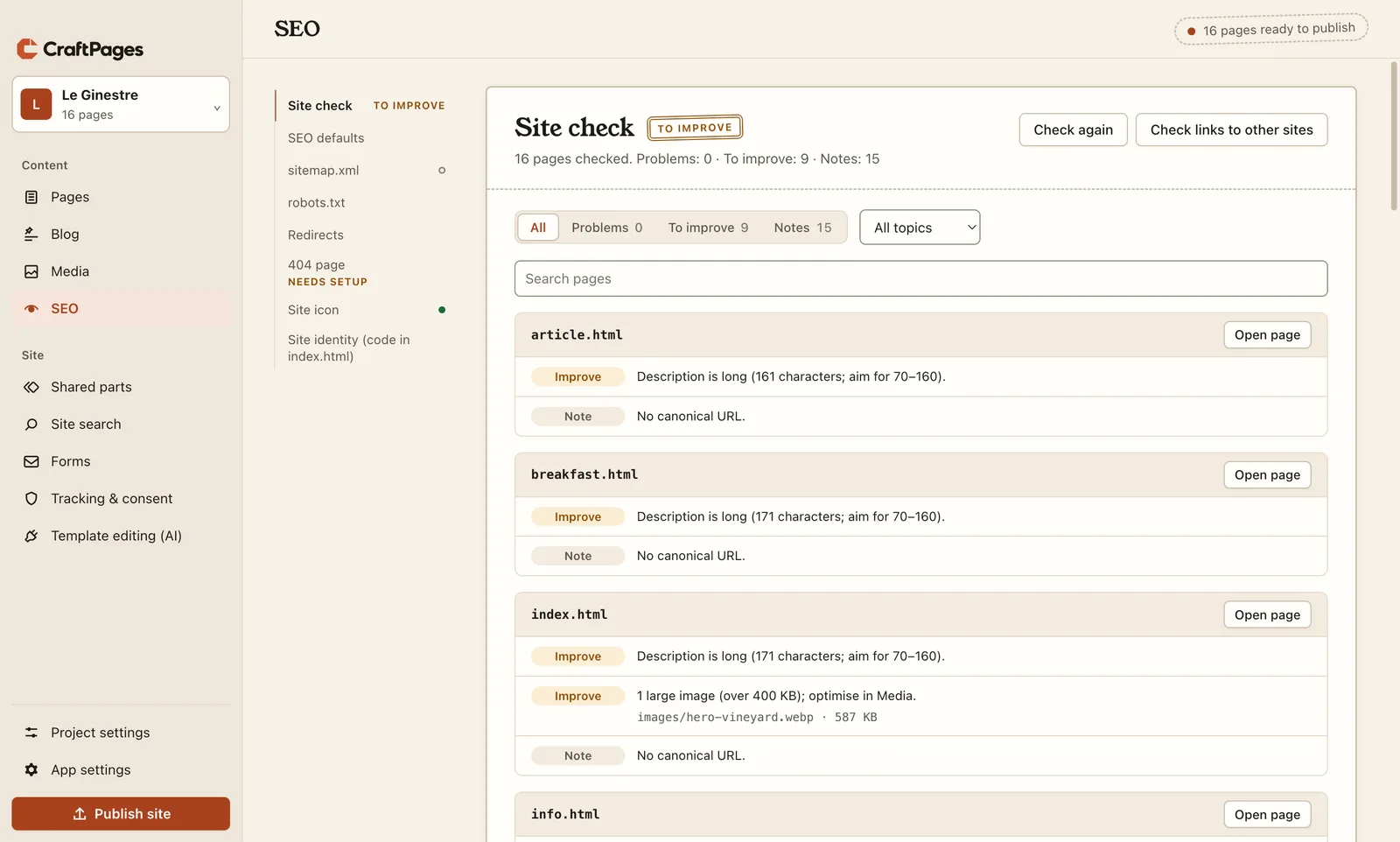
No problems, which is what you'd hope from a good template. But nine things to improve: eight pages have a description that's too long, and the home page has one heavy photo. Open page goes straight to the page.
Step 2. Titles and descriptions
The title and description are what Google usually shows for a page: the blue line and the two lines under it. In the page editor, Page SEO opens both, with a preview of the search result that changes as you type.
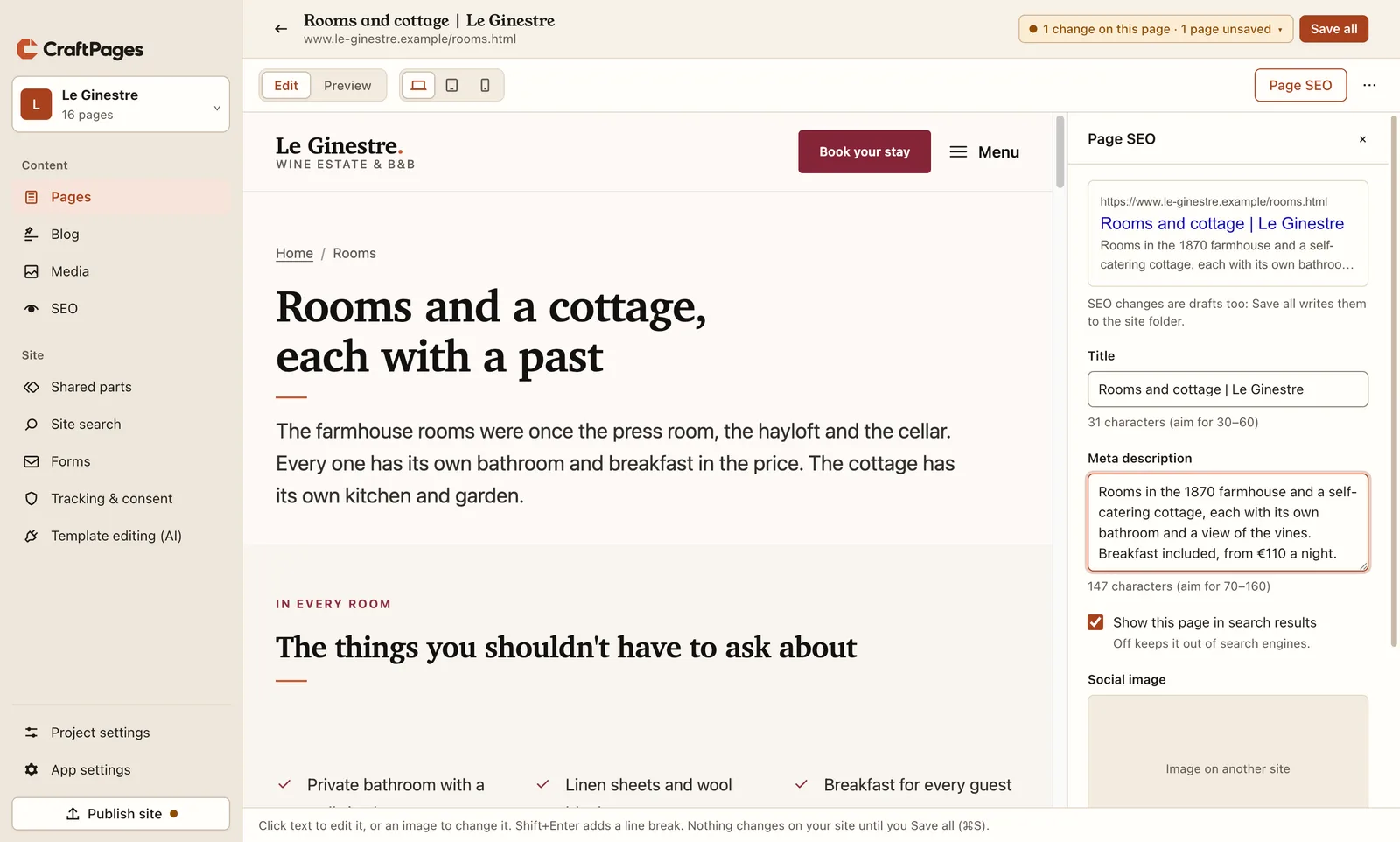
The counters say how long each one should be: a title of 30 to 60 characters, a description of 70 to 160. Longer ones get cut off in the results, usually right where the useful part was, like the price here. Chiara shortened the rooms page's description to 147 characters, kept the price, and clicked Save all. The other seven pages took about ten minutes.
The heavy photo: leave it
The home page's big vineyard photo is 587 KB, and the check suggests optimising it in Media. Media says Nothing to gain: these images are already well compressed. It's 2,400 pixels wide for large screens, and the page already offers an 800 and a 1200 pixel version, so a phone downloads 60 KB. "To improve" is advice, not an error: here the answer is to leave it.
The notes: no canonical URL
The fifteen notes all say "No canonical URL". A canonical URL tells search engines which address is the main one when a page can be reached at several. Le Ginestre's pages each have one address, so there's nothing to do. If you ever need one, it's in Page SEO with the other advanced fields.
Step 3. Sitemap and robots.txt
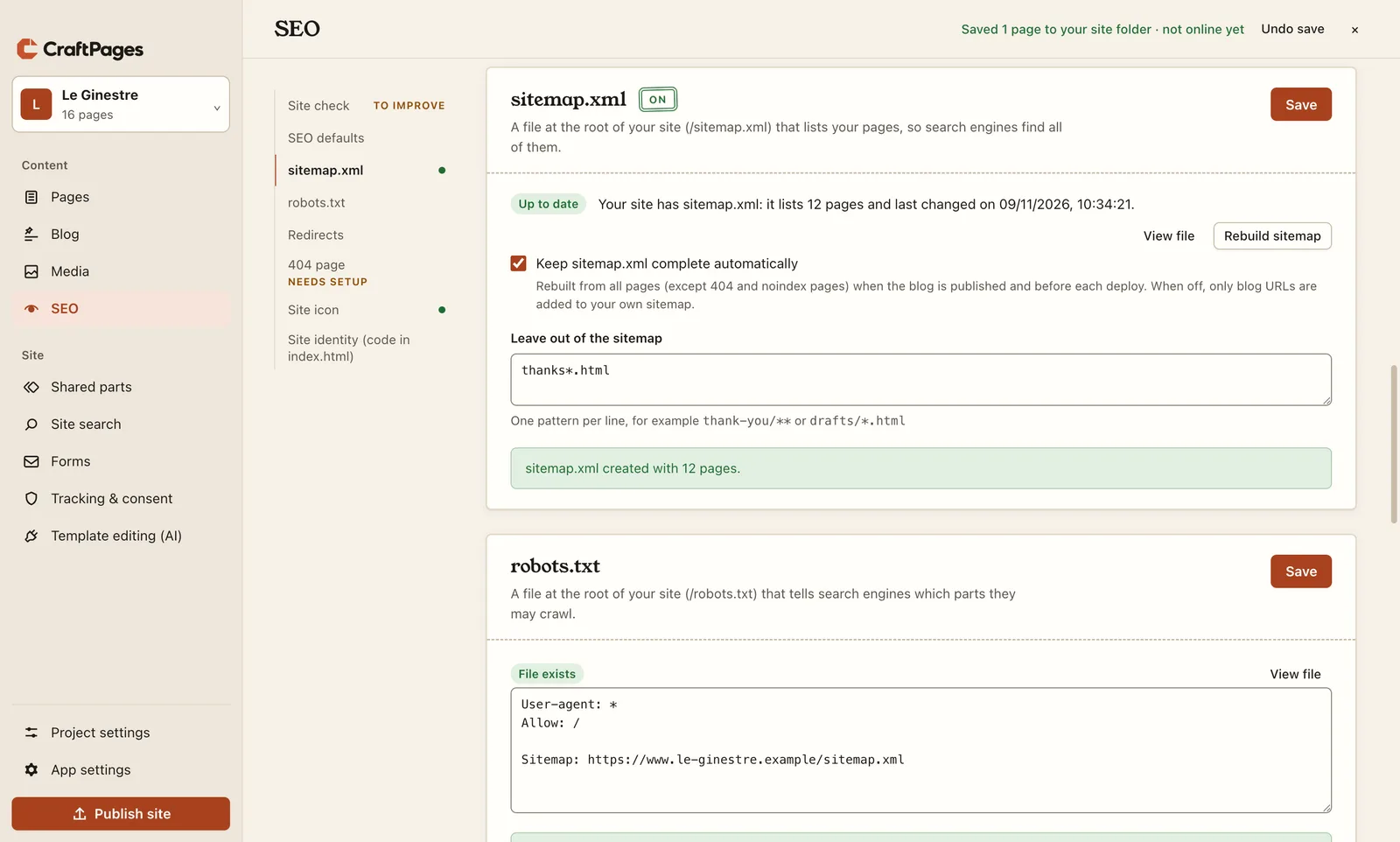
A sitemap is a list of your pages for search engines, so they find all of them, not only the ones linked from the home page. Further down the SEO screen:
- Tick Keep sitemap.xml complete automatically. CraftPages then rebuilds it before every publish, so a new page is never missing.
- Under Leave out of the sitemap, Chiara wrote
thanks*.html. The three thank-you pages only make sense after a form, so nobody should land on them from Google. - Create sitemap.xml: 12 pages (the 16, minus the 404 page and the thank-you pages).
- Create default robots.txt. It lets search engines crawl everything and tells them where the sitemap is.
Once the site is published, tell Google about it once: in Google Search Console, add your site, open Sitemaps and enter sitemap.xml. It's free, and it's also where you'll see which searches bring people to you.
Step 4. The site icon
The icon shows in browser tabs, bookmarks, next to your result in Google, and on a phone's home screen. Each of those wants a different size and file. The template only had a small favicon.svg: the letter G and a terracotta dot.
In Site icon, Change…, choose an image (an SVG, or a square picture of at least 512 × 512 pixels), and set the Home screen background. Chiara picked the template's dark brown, so the icon looks the same on a phone.
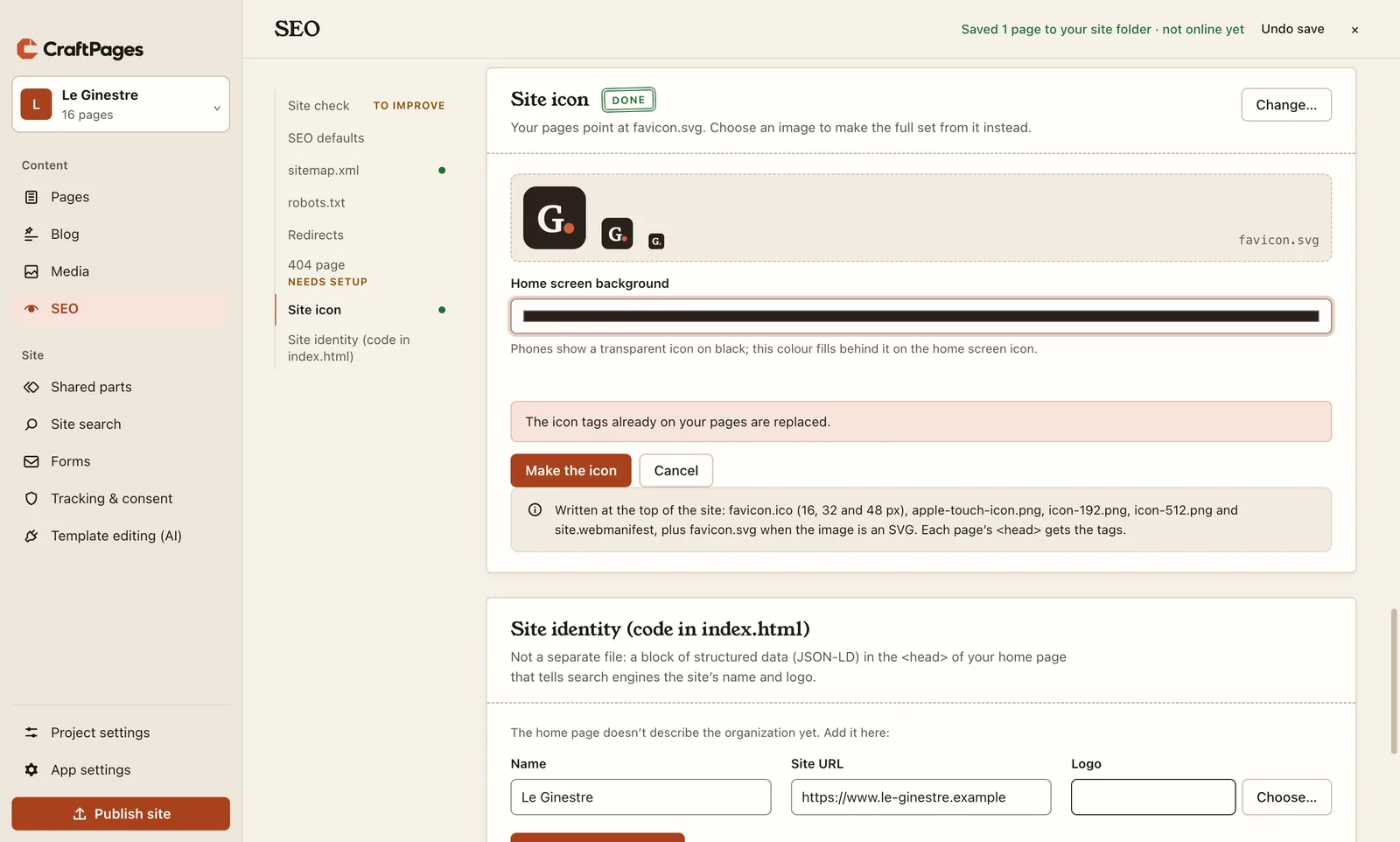
Make the icon writes favicon.ico, apple-touch-icon.png, two Android sizes and a small site.webmanifest, and adds the tags to all 16 pages. No favicon generator website, and no tags to copy by hand.
Step 5. The 404 page
A 404 page is what visitors see at an address that doesn't exist: a mistyped link, a page you removed. Without one, they get the host's plain error page and probably leave.
The Le Ginestre template comes with a 404 page in its own design, so the section says so. But it also says Needs setup: Chiara's site is on an ordinary web host (part 2), and the server doesn't know about the page yet.
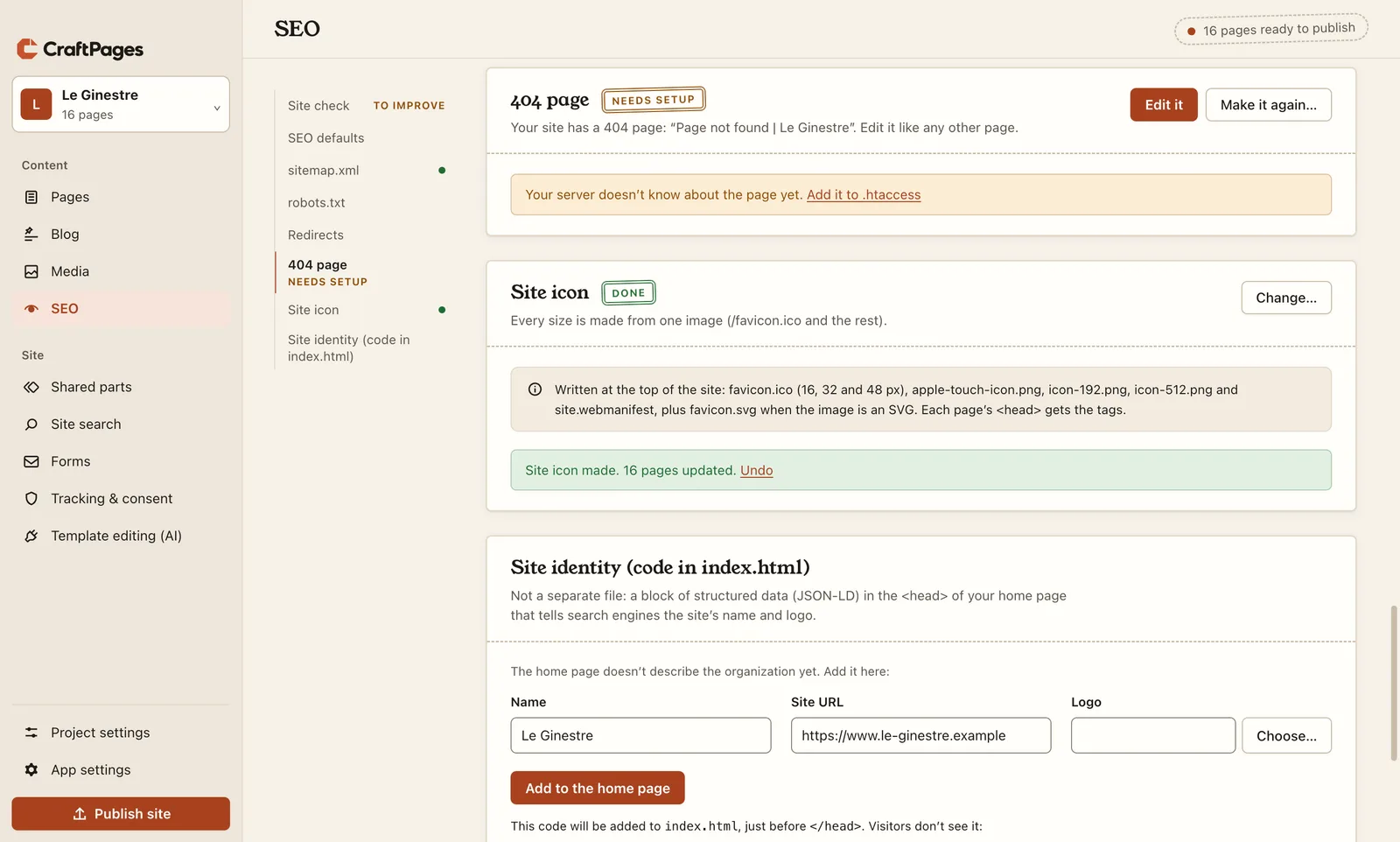
Add it to .htaccess writes one line, ErrorDocument 404 /404.html, into the file Apache servers read. On Cloudflare there's nothing to do: it finds 404.html by itself.
If your site has no 404 page at all, the same section has Make a 404 page. It builds one from any of your pages, so it gets your header, footer and styles, and you set the heading and the message.
Step 6. Redirects for the old addresses
Before the new site, Le Ginestre had a home-made one in the same public_html folder, with Italian file names. Google still knows those addresses, and so do two booking sites and a few old guidebook pages that link to them. Without redirects, every one of those visitors now gets the 404 page.
In Redirects, Add redirect for each one: the old address, the new one, and the kind.
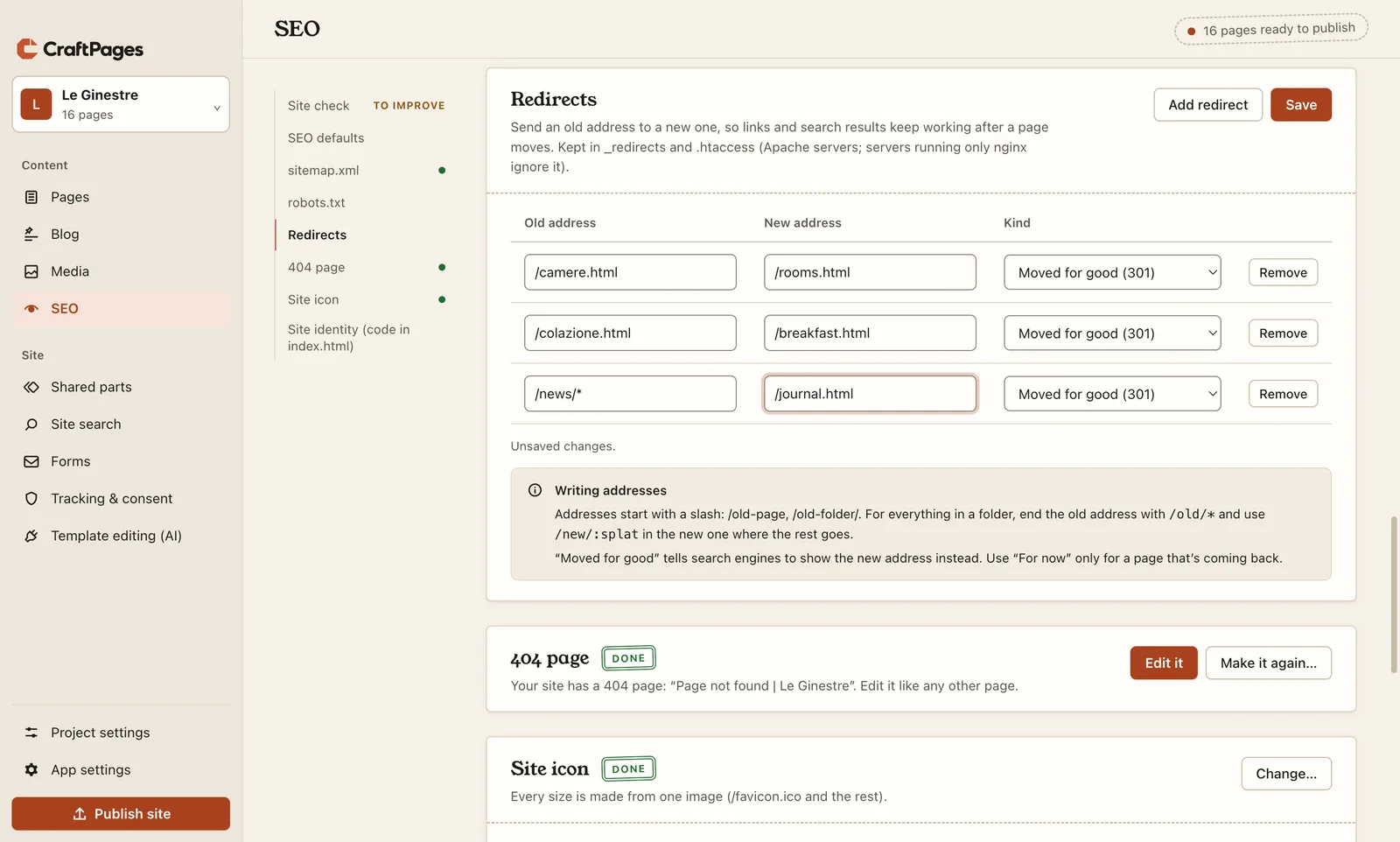
- Moved for good (301) tells Google to show the new address from now on, and passes on what the old address had earned. Use this one.
- For now (302) is only for a page that's coming back.
/news/*catches everything in the old news folder. Here it all goes to the Journal; with:splatin the new address, each old post could go to its own new one.
CraftPages warns when a redirect can't work: when a page still exists at the old address, when the new address isn't a page of the site, or when it redirects again. Click Save. The redirects go into _redirects, which Cloudflare reads, and into .htaccess for Apache, next to the 404 line. They work once the site is published.
Step 7. Who the site belongs to
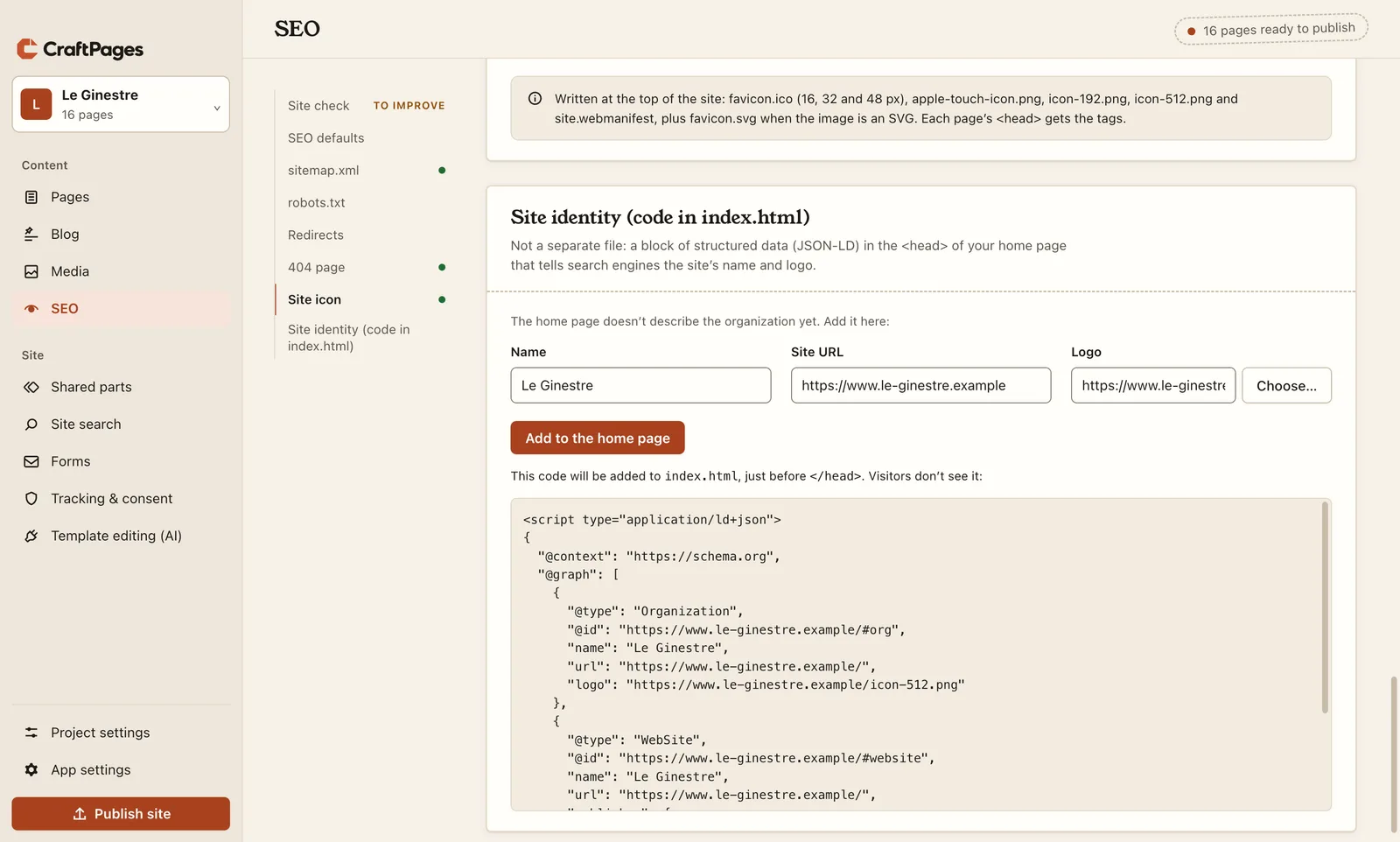
The last section, Site identity, adds a short block of structured data to the home page: the business name, the address of the site, and a logo. Search engines use it for the name and logo they show for your site. Chiara chose the new icon-512.png as the logo and clicked Add to the home page. Visitors don't see it; the section shows the code before it's added.
Step 8. Check again, and check the links
Back at the top, Check again. Then Check links to other sites: CraftPages visits every link that leads to another site (Google Maps, WhatsApp, Facebook and Instagram) and reports any that are gone. It's a button rather than part of every check because it goes out to the internet and takes a moment.
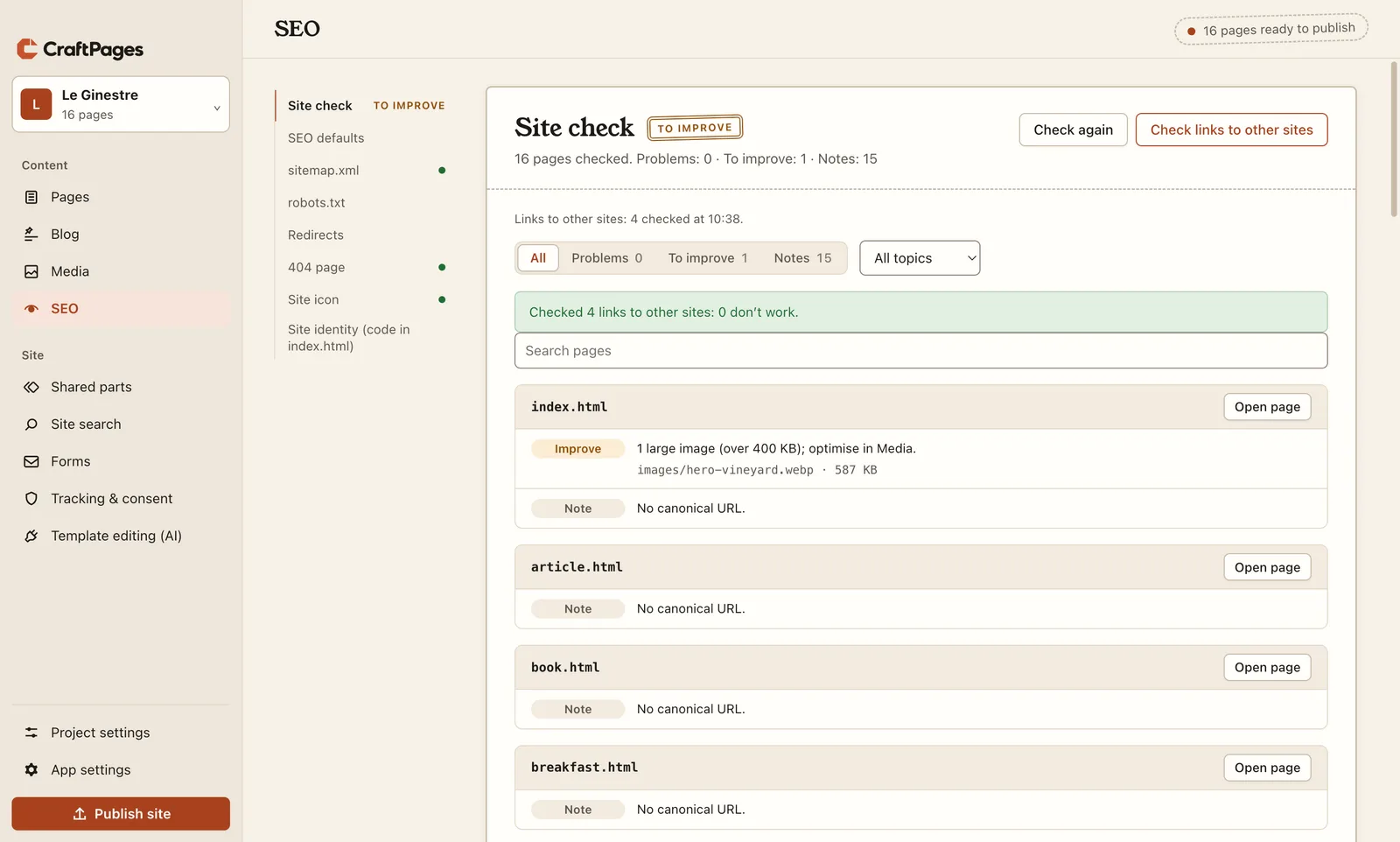
No problems, and the one thing left to improve is the photo we decided to keep. Click Publish site, and it all goes up together: the shorter descriptions, the sitemap, robots.txt, the icon, the 404 setup, the redirects. Publishing only sends what changed, as in part 2.
What to expect
SEO isn't instant. Google visits again in its own time, from a few days to a few weeks, and the new descriptions and the icon appear as it does. Search Console shows when it has read your sitemap. None of this guarantees a top spot. It makes sure nothing stands in the way, and that your result looks like it belongs to a place people want to stay.
What you didn't have to do
No SEO plugin, and no monthly SEO tool. No favicon generator site, and no icon tags pasted into sixteen pages. No sitemap XML written by hand, no .htaccess rules looked up on a forum, no trip to the hosting panel to set up the error page. One screen, one afternoon.
The series
- Edit your website like a document
- Put your site online
- Analytics and a cookie banner, done properly
- SEO in an afternoon (you are here)
- Forms that reach your inbox: a working contact form on a static site, with a free CraftForms account
- A journal (blog) in your own design
- Two people, two computers, one site: sync that combines edits and never overwrites
- A second language: Italian pages next to the English ones, with a language switcher
- Let an AI change the design: template edits you approve one by one
Next time: forms that reach your inbox. Le Ginestre's contact form looks right, but on a static site there's nothing behind it to send the message. We'll connect it, see a real message arrive, and give the thank-you page we've been leaving out of everything a job.