
Analytics and a cookie banner, done properly
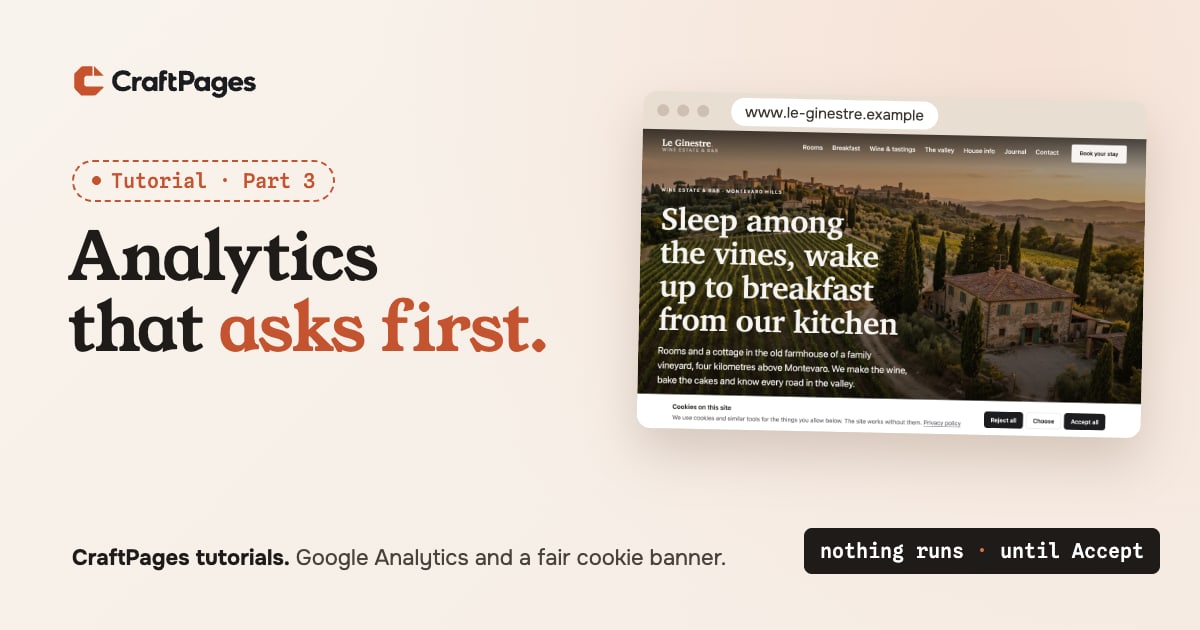
In part 2 Le Ginestre went online. Now Chiara wants to know whether people look at the rooms page before they book, and which pages nobody reads. That's a job for analytics. In Italy, as everywhere in the EU and the UK, it also means a cookie banner that really asks before anything is counted.
Most cookie banners are a monthly subscription, a script from someone else's server, and a setup guide with the words "tag manager" in it. In CraftPages 1.5 it's one screen, it costs nothing, and it all stays in your own pages. Let's do it.
First: do you need a banner at all?
It depends on what you add. Google Analytics, Meta Pixel and similar tools set cookies and follow visitors, so in the EU and UK they need the visitor's consent first. Videos and maps from other sites (YouTube, Google Maps) count too: they set their own cookies as soon as they load.
Some analytics set no cookies at all: Plausible, Umami and Cloudflare Web Analytics. With one of those and no embeds, you don't need a banner. There's more on that below.
Chiara's choice is Google Analytics, because it's free and her accountant already reads its reports. So she needs the banner. (This is a how-to, not legal advice. If you're unsure, ask whoever looks after your privacy page.)
Step 1. Open Tracking & consent
In the sidebar, under Site, click Tracking & consent. Before you've added anything, CraftPages has already read every page and tells you what they load from other sites.
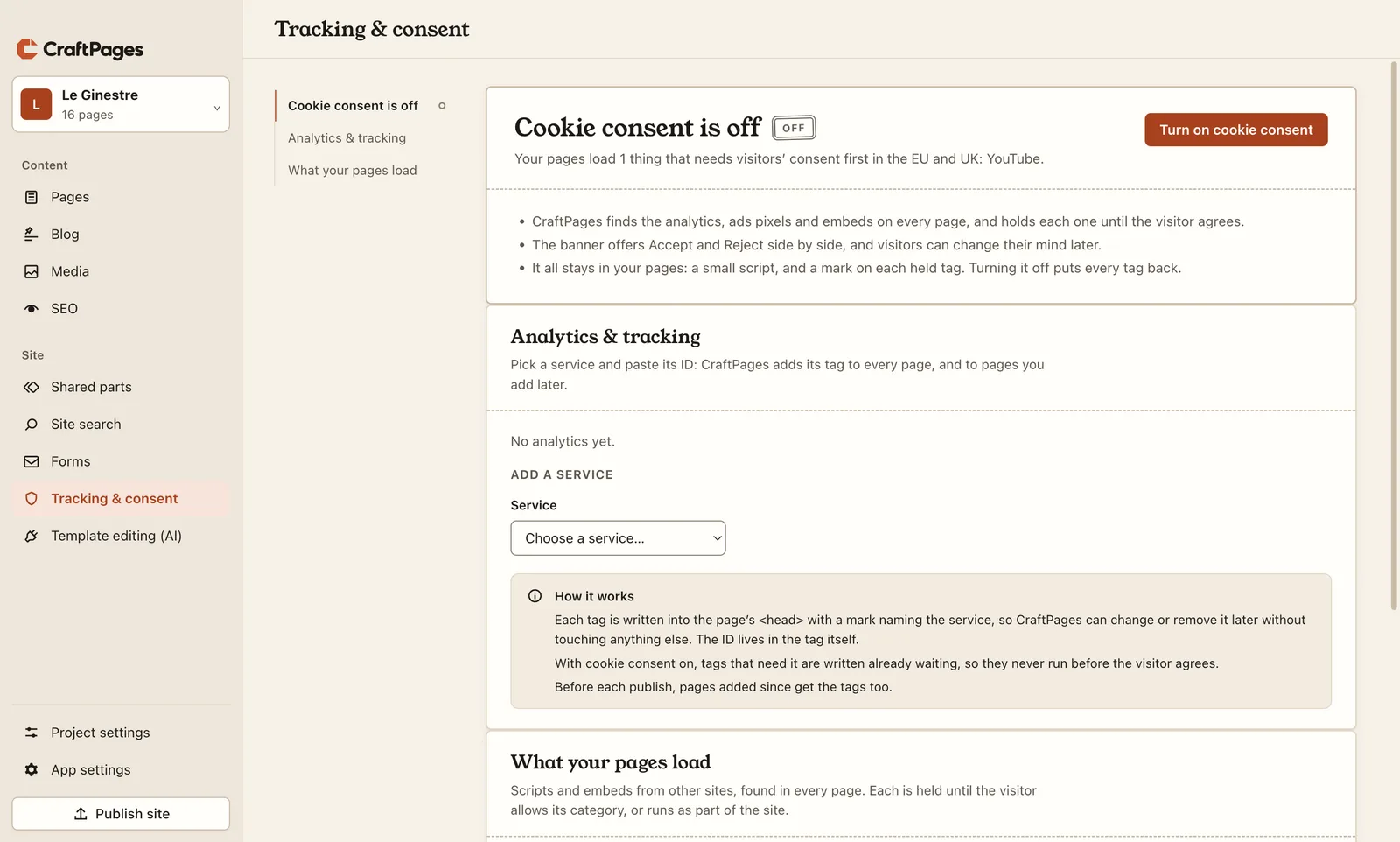
That's right: last spring Chiara put a short film of the valley on The valley page. It has been setting YouTube's cookies for every visitor since then, and nobody noticed.
Step 2. Add Google Analytics
Under Analytics & tracking, choose Google Analytics 4 and paste its ID. The hint under the field says where to find it: in Google Analytics, Admin → Data streams → your site. It starts with G-.
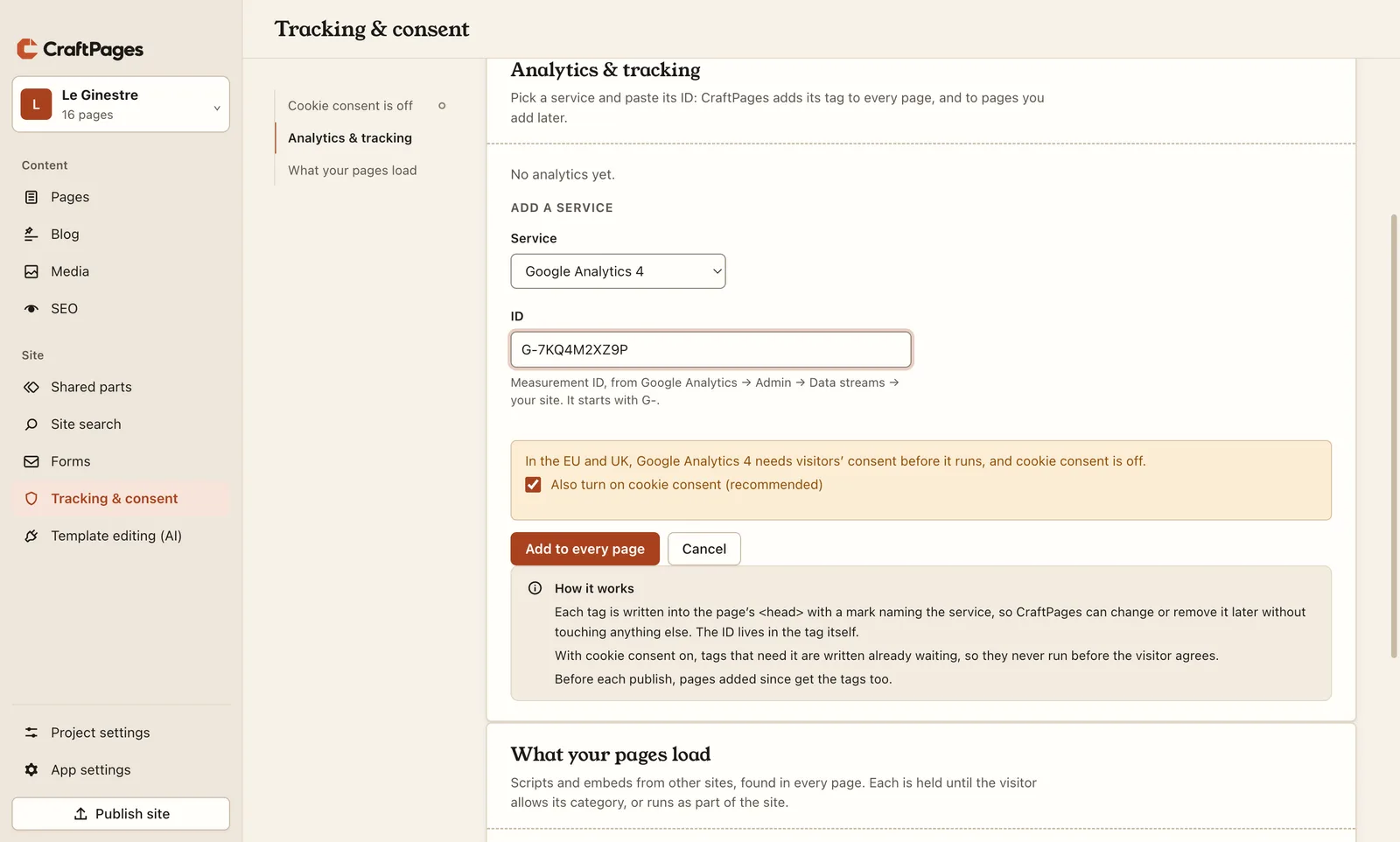
Because cookie consent is still off, CraftPages points out that Google Analytics needs it, and ticks Also turn on cookie consent (recommended). Leave it ticked and click Add to every page.
Step 3. See what changed
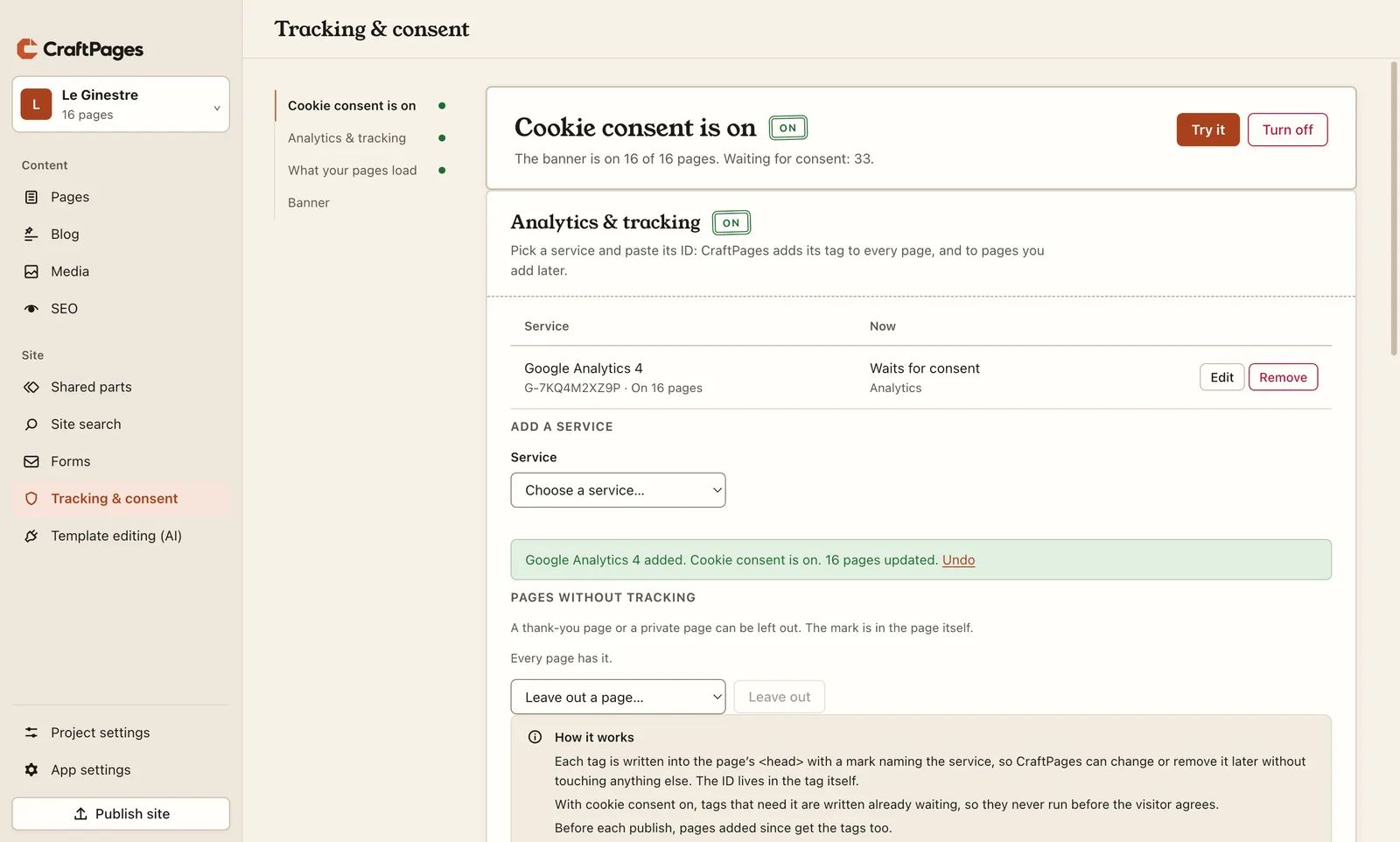
In one step CraftPages:
- added the Google Analytics tag to all 16 pages, already set to wait for consent, so it never runs before a visitor agrees;
- held the YouTube video in the same way, under Embedded content;
- added the banner to every page.
"Waiting for consent: 33" counts tags: Google's tag is two pieces per page (2 × 16), plus the video. Pages you add later get the tag and the banner too, before each publish. So do any analytics or embeds pasted in later, by you, a helper or an AI: they're held before the next publish.
Changed your mind? Undo takes it all back, and Turn off later puts every tag back exactly as it was.
Step 4. Leave out the pages you don't want counted
Chiara counts bookings in her inbox, not in Google Analytics, and she doesn't want the three thank-you pages (after a booking request, a message, a newsletter sign-up) showing up as visits. Under Pages without tracking, she picks each one and clicks Leave out.
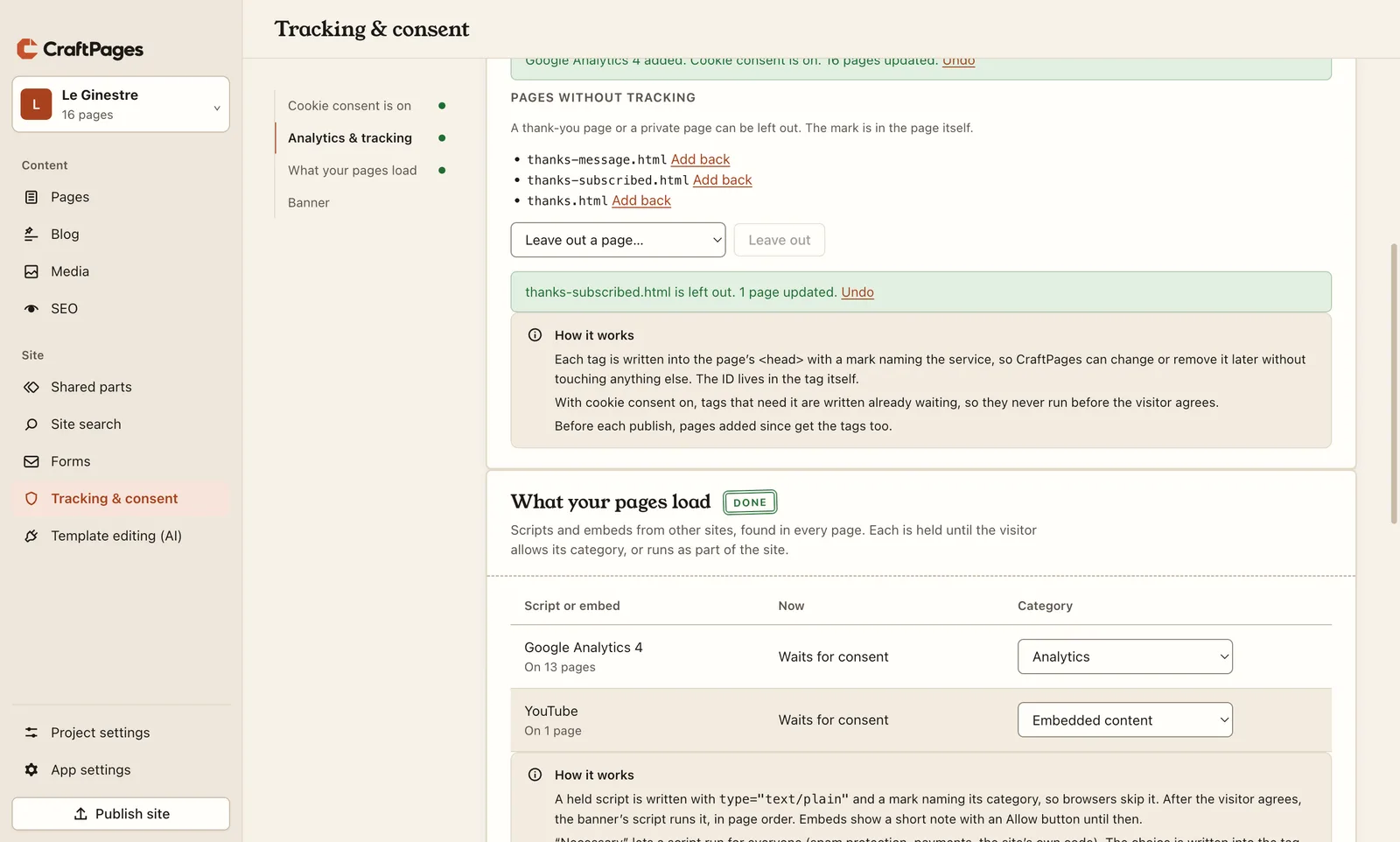
The mark goes into each page itself, so a left-out page stays left out, also if you work on the site from another computer.
Under that is What your pages load: every script and embed from another site, on how many pages, and its category. About 45 tools are recognised by name. If CraftPages finds one it doesn't know, it asks you to choose what it is. A script your site can't work without (spam protection, a payment button) can be set to Necessary, and then it runs for everyone.
Step 5. The banner
Further down, Banner sets where it shows and what it says.
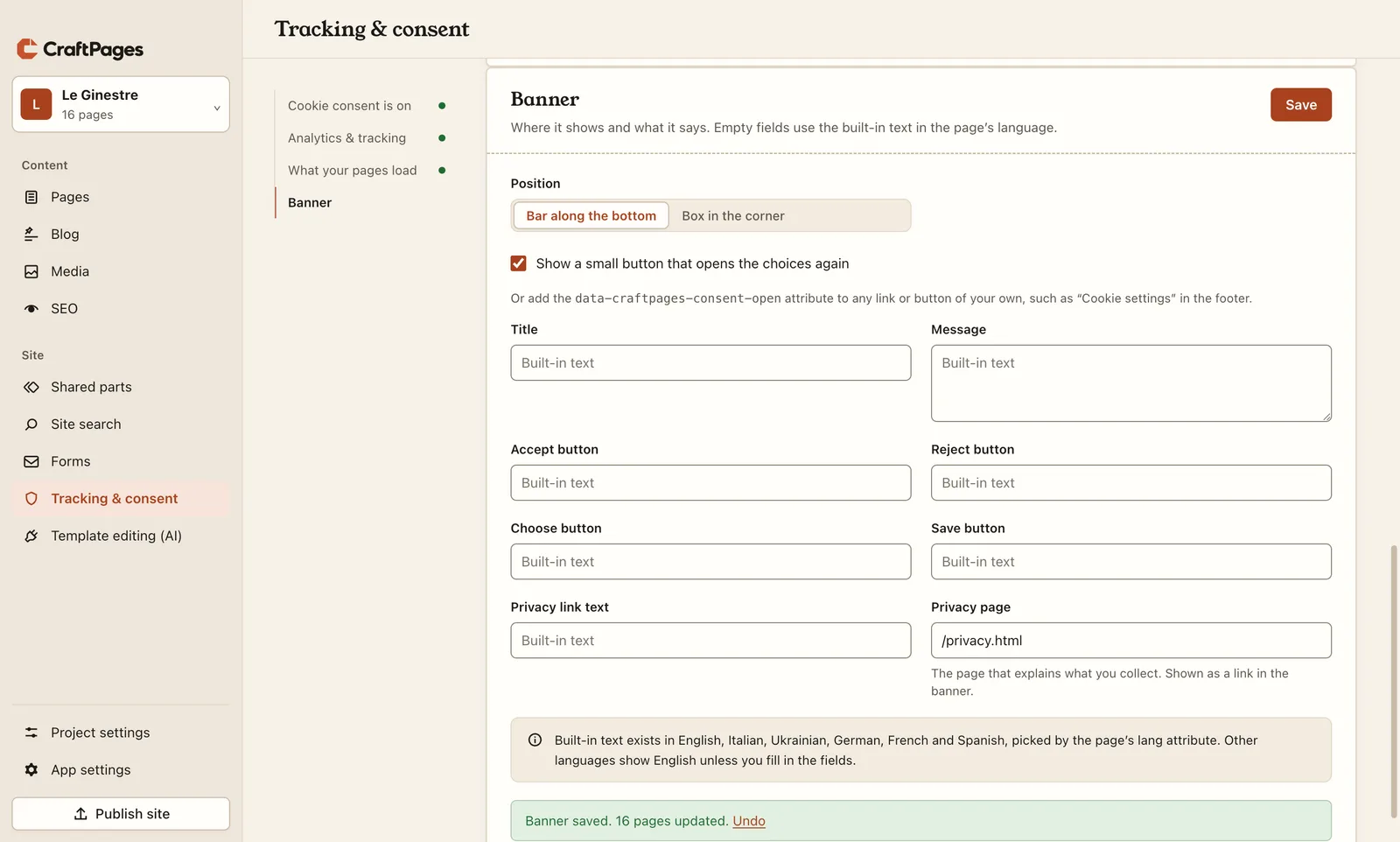
- Position: a bar along the bottom, or a box in the corner.
- Text: empty fields use built-in text in English, Italian, Ukrainian, German, French or Spanish, whichever the page is in. When Le Ginestre gets Italian pages (part 8), they'll get an Italian banner without anyone touching this.
- Privacy page: the page that explains what you collect. The template already has one,
/privacy.html. Remember to say there that you use Google Analytics. - Opening it again: visitors must be able to change their mind. Keep Show a small button that opens the choices again on, or add a "Cookie settings" link of your own (see the end of this post).
Click Save.
Step 6. Try it
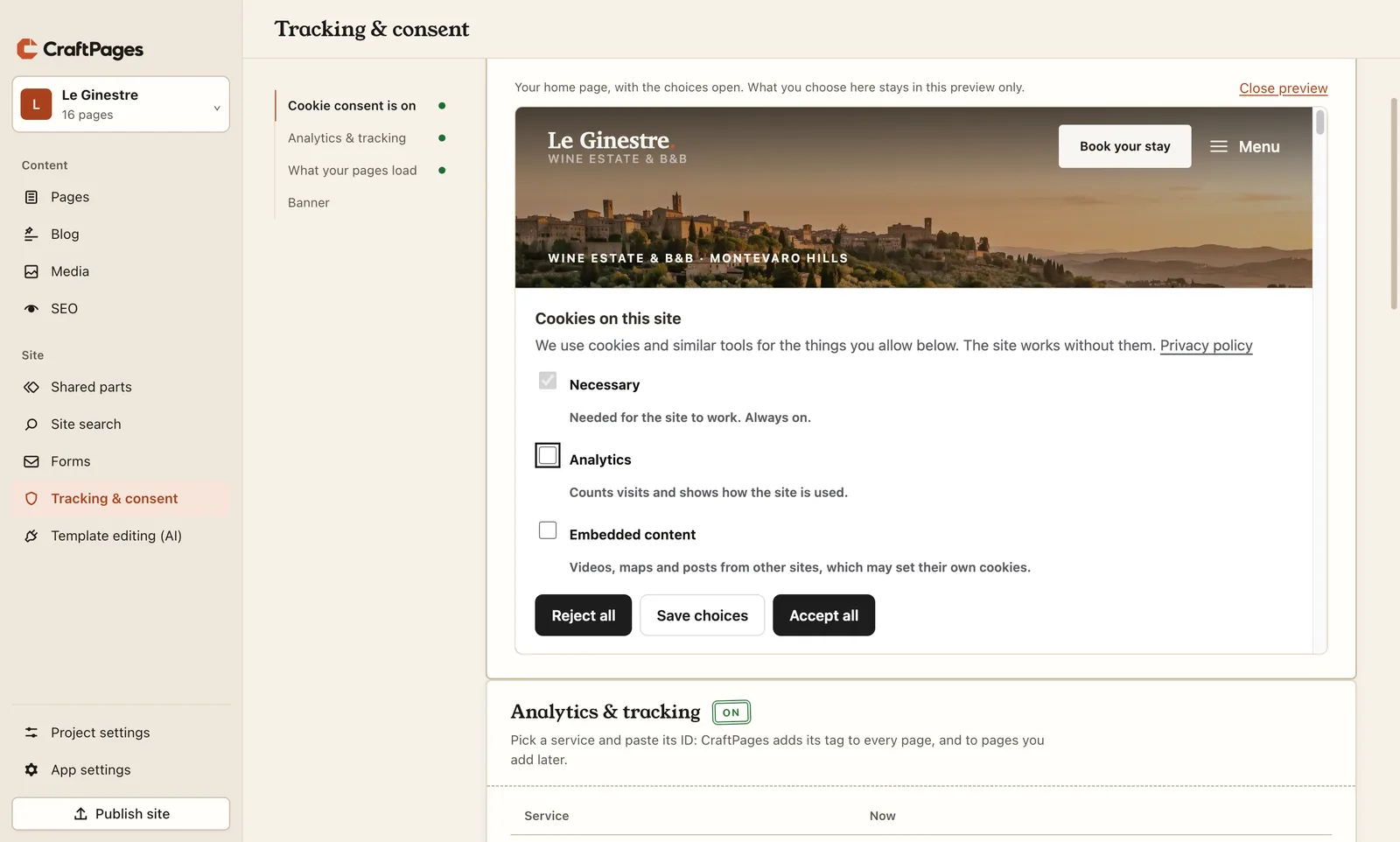
Try it at the top of the screen opens your home page inside CraftPages, with the choices open. Click around: what you choose there stays in the preview.
Step 7. Publish, and look at it as a visitor
Click Publish site, as in part 2. Then open the site in a browser where you've never visited it (a private window will do).
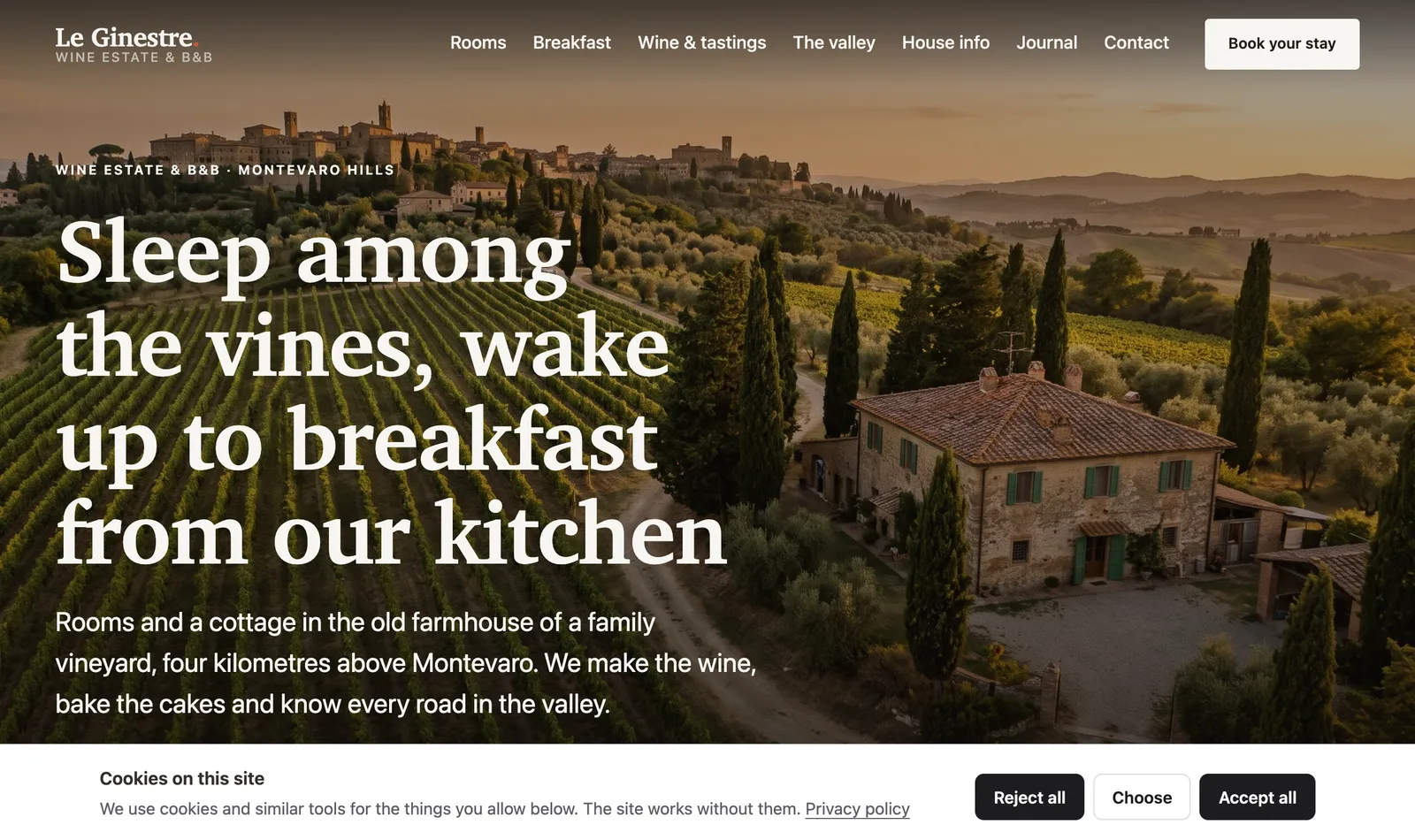
Reject all is right next to Accept all, the same size and just as easy to click. That isn't only good manners: France's regulator, the CNIL, fined Google and Facebook in 2022 because refusing cookies took more clicks than accepting them. Choose opens the categories, so a visitor can allow the video and not the analytics, for example.
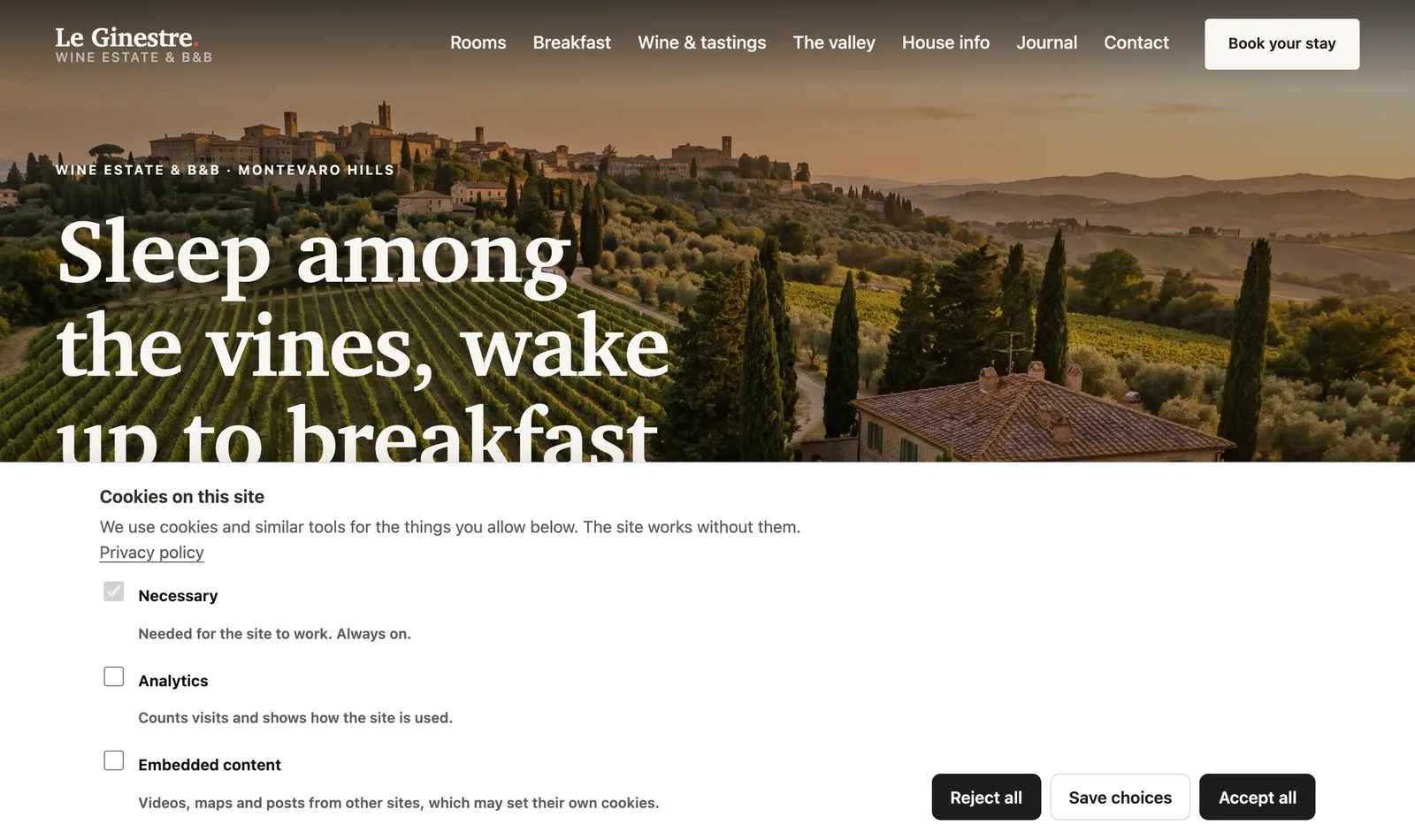
Here's what we saw in the browser on Le Ginestre's live site:
- Before anyone clicks: not a single request to Google, and no cookies.
- After Reject all: the same. The video on the valley page shows a short note with an Allow embedded content button instead of loading YouTube, and a small round button in the corner opens the choices again.
- After Accept all: Google's script loads and its
_gacookies are set, and the visit is counted.
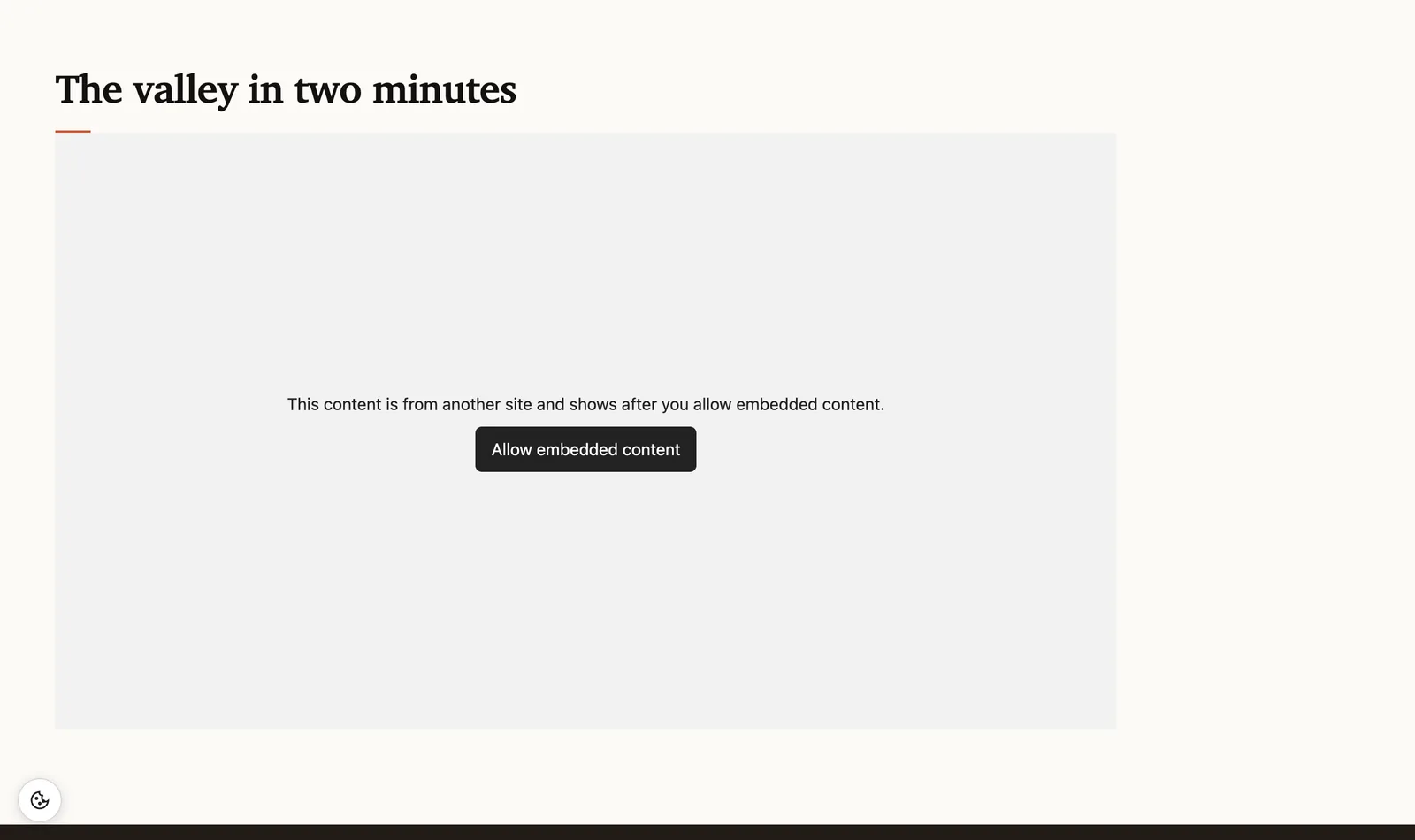
The choice is kept for 12 months in the visitor's own browser. If the site starts using a new kind of tool later (say Chiara adds a Meta Pixel), visitors are asked again. Someone who takes their consent back also loses the cookies that the tools in that category set.
The no-banner option
If all you want is to know how many people visit and which pages they read, consider analytics that set no cookies. In the same Add a service list, under Analytics without cookies, are Plausible, Umami and Cloudflare Web Analytics (free, if your site is on Cloudflare as in part 2). CraftPages marks them "Runs: sets no cookies", and they need no banner. The numbers are simpler than Google's, and every visitor is counted, not just the ones who click Accept.
For the curious: what's in your pages
Here is the top of Le Ginestre's home page after this tutorial. Google's tag is unchanged except for type="text/plain", which makes browsers skip it, and a mark saying what it is and which consent it waits for. The last line is the banner, a small script that sits in your own assets folder:
<script async src="https://www.googletagmanager.com/gtag/js?id=G-7KQ4M2XZ9P"
        data-craftpages-tracking="ga4" data-craftpages-consent="analytics" type="text/plain"></script>
<script data-craftpages-tracking="ga4" data-craftpages-consent="analytics" type="text/plain">
  window.dataLayer = window.dataLayer || []; function gtag(){dataLayer.push(arguments);}
  gtag('js', new Date()); gtag('config', 'G-7KQ4M2XZ9P');</script>
<script src="/assets/craftpages-consent.js" data-categories="analytics embeds"
        data-position="bar" data-button="on" data-privacy="/privacy.html" defer></script>
When a visitor allows analytics, the banner's script runs the held tags, in page order. Nothing is loaded from CraftPages, and there's no account anywhere. Want a "Cookie settings" link in the footer, next to the privacy link? Give any link the data-craftpages-consent-open attribute and it opens the choices.
What you didn't have to do
No consent service to sign up for, and no monthly fee per domain. No tag manager, and no script to paste into sixteen pages and then remember for the seventeenth. No guessing which of your pages loads what. And Le Ginestre doesn't count anyone who said no.
The series
- Edit your website like a document
- Analytics and a cookie banner, done properly
- Analytics and a cookie banner, done properly (you are here)
- SEO in an afternoon: titles and descriptions, the site check, sitemap, site icon, 404 page and redirects
- Forms that reach your inbox: a working contact form on a static site, with a free CraftForms account
- A journal (blog) in your own design
- Two people, two computers, one site: sync that combines edits and never overwrites
- A second language: Italian pages next to the English ones, with a language switcher
- Let an AI change the design: template edits you approve one by one
Next time: SEO in an afternoon. Titles and descriptions that read well in Google, the site check, an icon for the browser tab, a 404 page in Le Ginestre's own design, and redirects for the old site's addresses, all from the SEO screen.