
Edit your website like a document
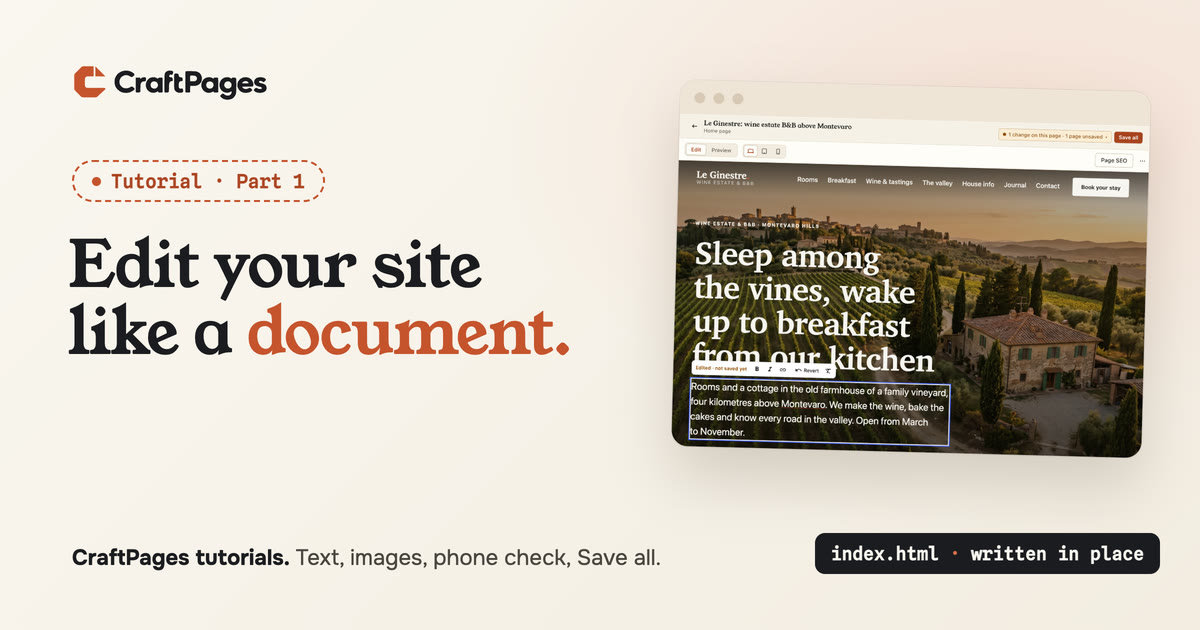
A static website is a folder of HTML files. That's its best quality (fast, cheap, nothing to hack, nothing to update) and its biggest problem: changing a sentence means opening code, finding the right line and hoping you don't break anything. Most tools fix that by moving your site into their system. CraftPages doesn't. It opens the folder you already have, and you edit the pages the way you'd edit a document.
This is part 1 of a series. Over the next articles we take one small business site from "a folder on my laptop" to a live site with analytics, a cookie banner, good SEO, working forms and two people updating it from two computers. Today we cover the part you'll do most often: changing text and images, checking the phone layout, and saving.
The site we'll use
Meet Le Ginestre, a family wine estate with five guest rooms and a cottage in the Montevaro hills. Chiara runs the bookings, writes the journal and, from today, updates the website herself. Le Ginestre is made up (the site is the free Inkwell B&B template from templatecraft.art), but it's a real 16-page site with photos, a booking form and a blog, which is what most small business sites look like.
Your own site works the same way, whatever made it: written by hand, exported from a site builder, generated by an AI or handed over by a developer. If it's a folder with HTML pages in it, you can follow along.
You need: CraftPages (free, for macOS, Windows and Linux: download it here), your site folder, and about fifteen minutes.
Step 1. Open your site folder
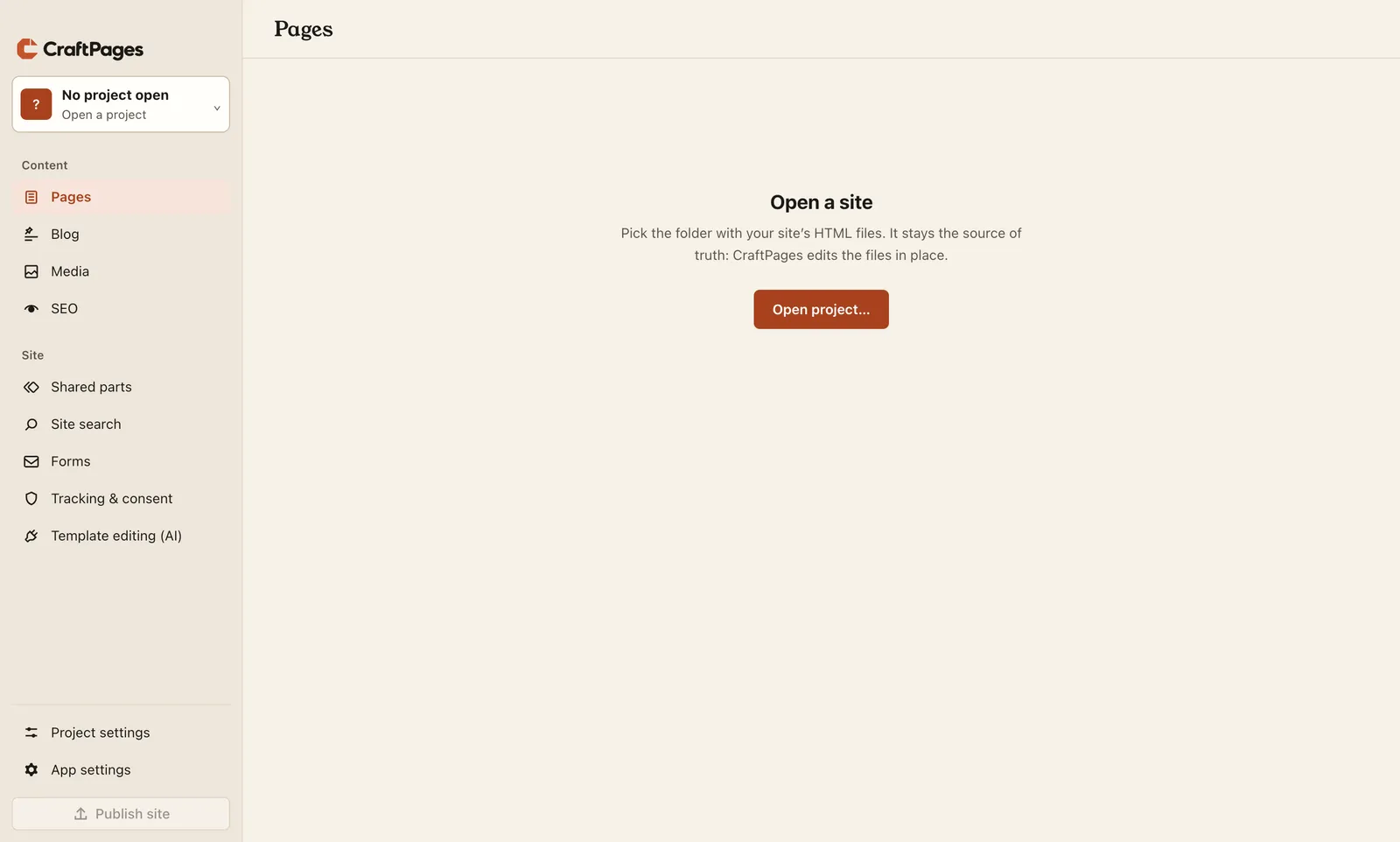
The first time you start CraftPages there's nothing open yet. Click Open project….
The Projects window lists the sites you've opened before. For now it's empty, so click Add project… and choose the folder that holds your index.html. (The other button, From another computer…, is for when a second person joins. That's part 7.)
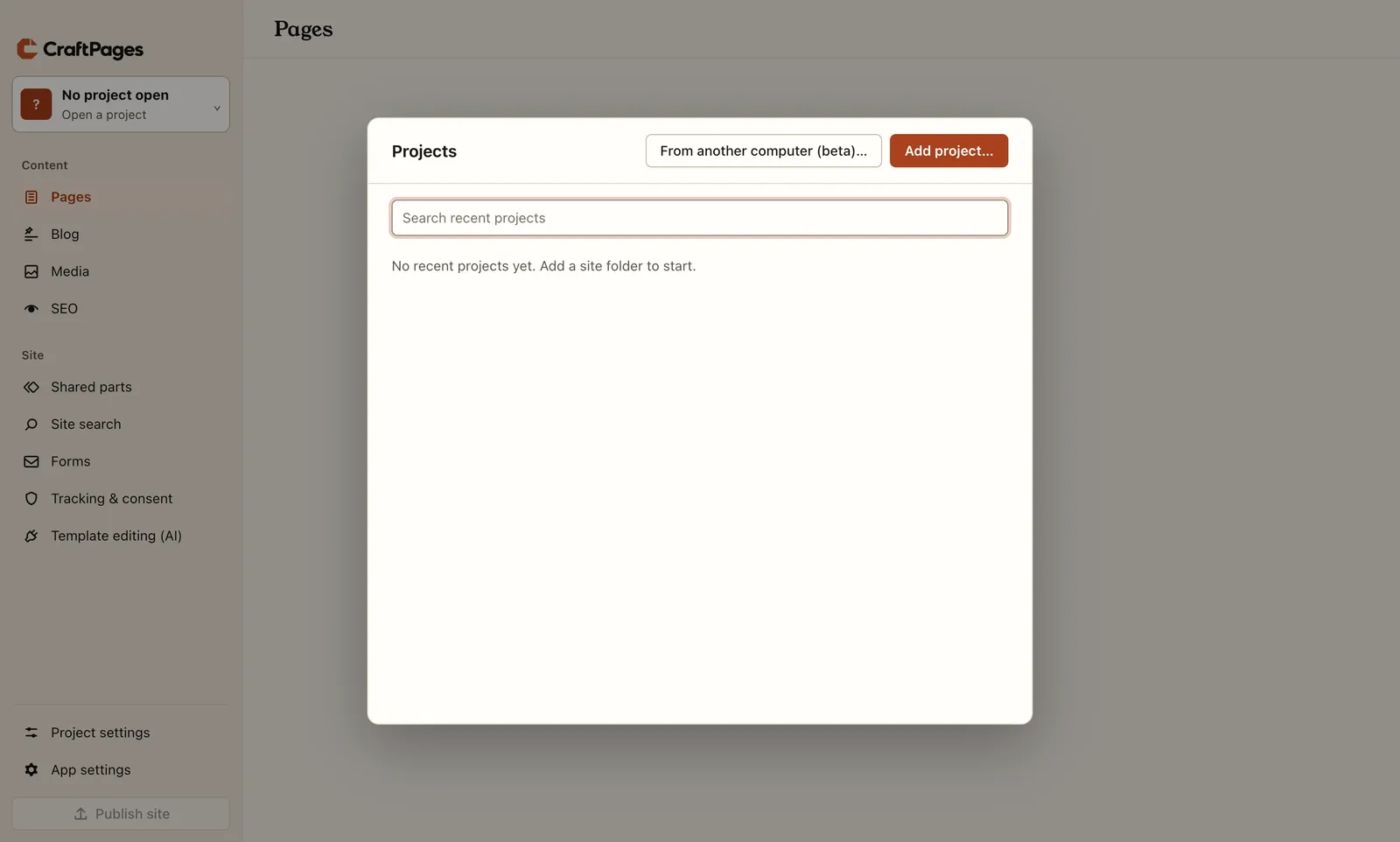
Nothing is imported or converted. CraftPages reads the folder where it is, and it stays the source of truth: every change you make ends up in those same files.
Step 2. Find the page you want
The Pages screen lists every page by its title, with its address next to it. The home page is marked home. With 16 pages that's easy to scan; on a bigger site, type in the search box to filter by title or file name.
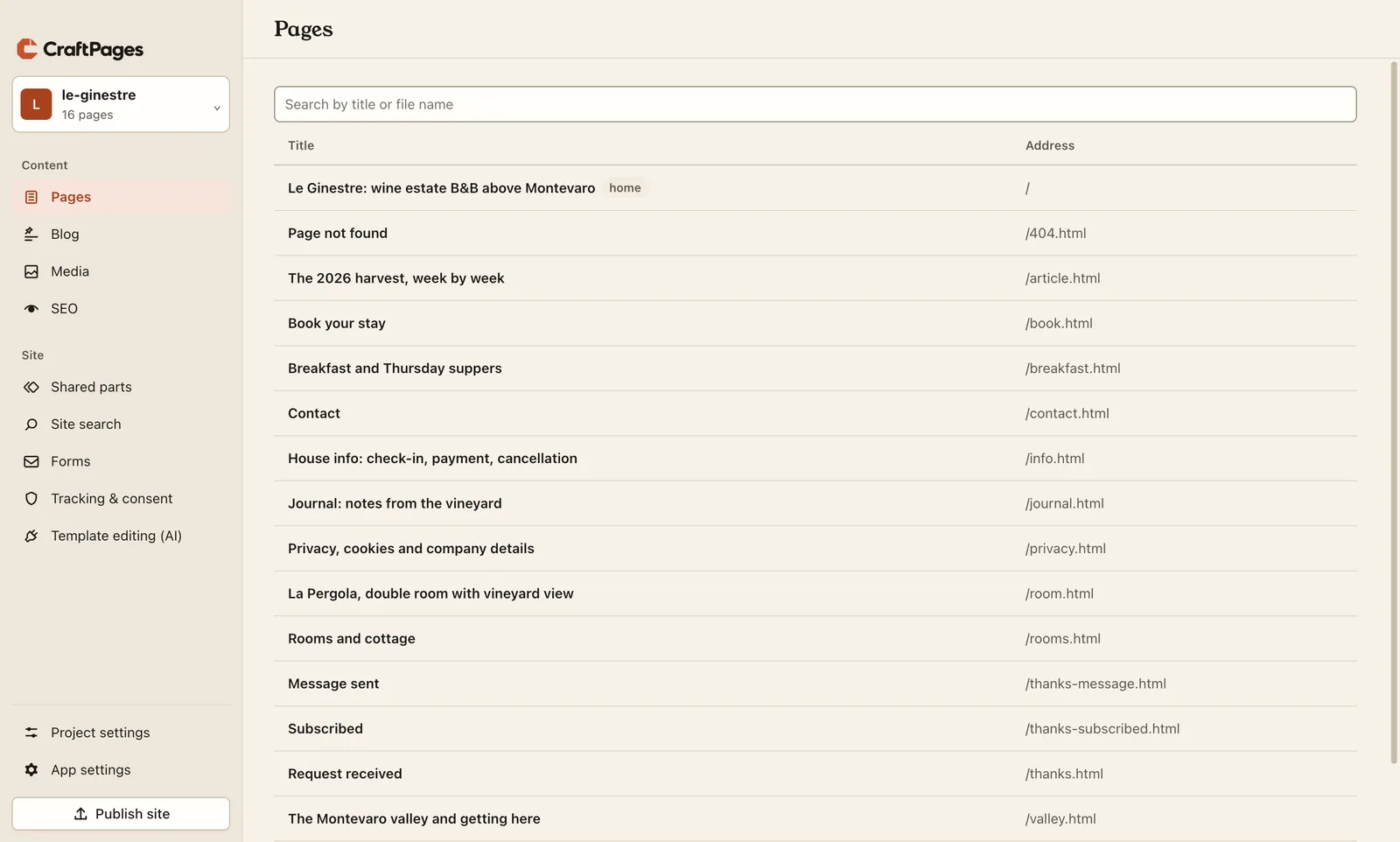
Chiara wants to tell guests when the B&B is open, so she clicks the home page.
Step 3. Click the text and type
The page opens exactly as visitors see it, with its own fonts, colours and photos. There's no separate form with fields to fill in: the page is the editor.
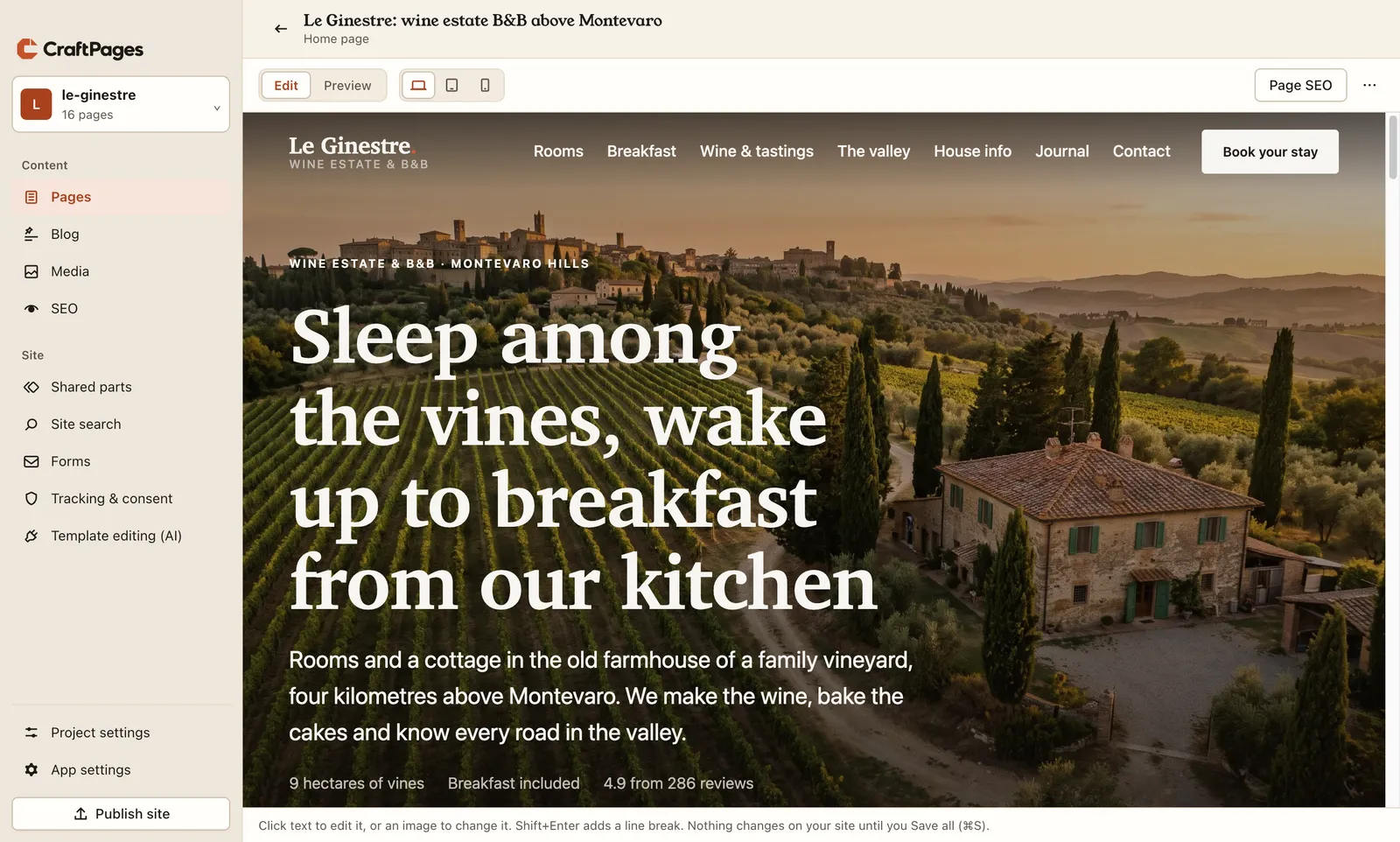
Click into the paragraph under the headline and type, as you would in a word processor. Chiara adds one sentence: "Open from March to November."
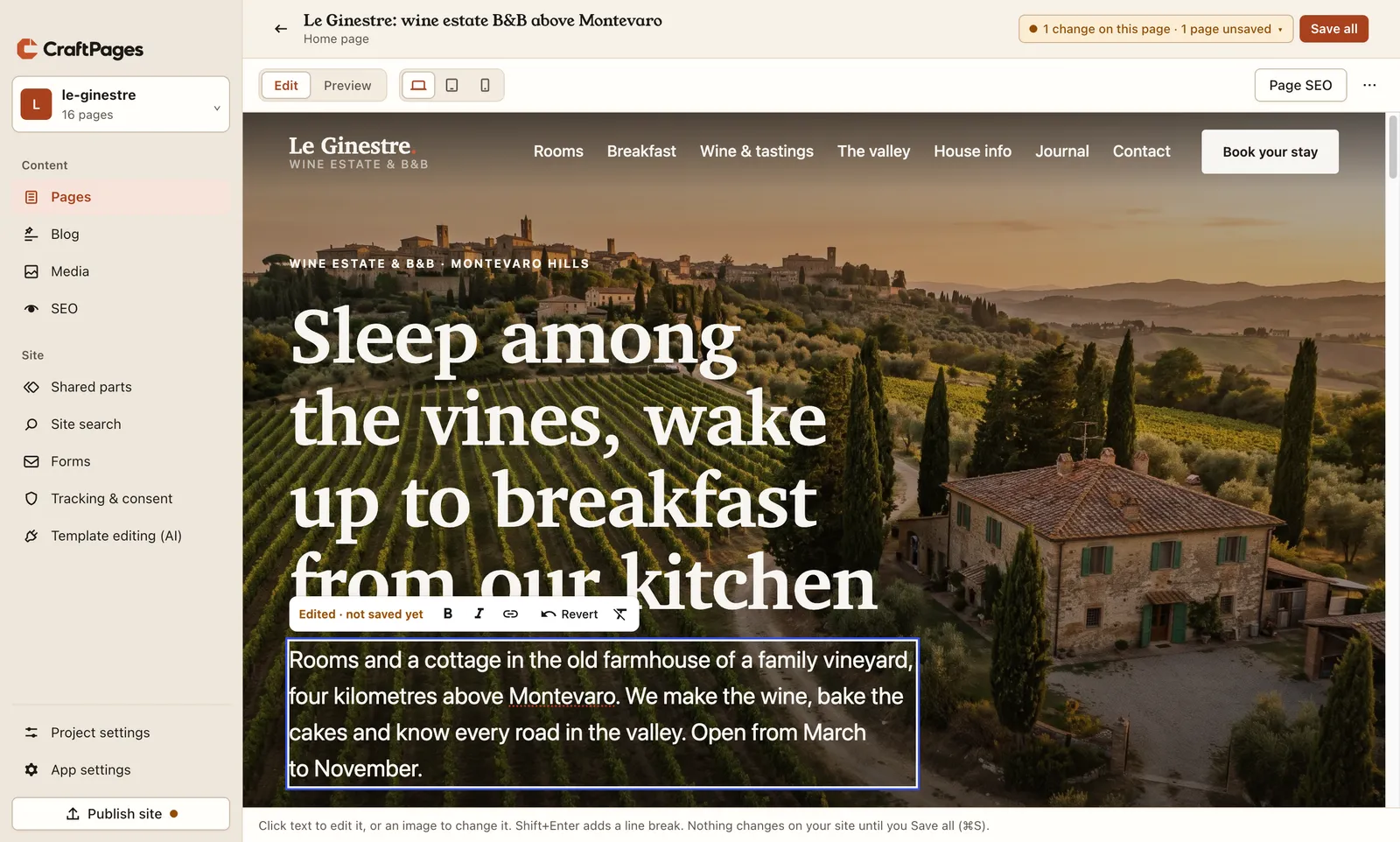
A few things to notice:
- The small toolbar above the paragraph says Edited · not saved yet. It has bold, italic and link buttons, and Revert, which puts this one paragraph back the way it was.
- The counter at the top reads 1 change on this page · 1 page unsaved. You can edit several pages and save them all at once.
- Enter and Shift+Enter: Shift+Enter adds a line break inside the same paragraph.
- The layout is safe. You change words, links and emphasis. The design (the HTML around your text and the CSS) isn't something a stray click can break.
Step 4. Change a photo, or describe it
Click any image and a panel opens on the right. It shows the file and its size, a Change image… button to pick a new one from your computer, and the alt text: the short description screen readers read aloud and search engines use to understand the picture.
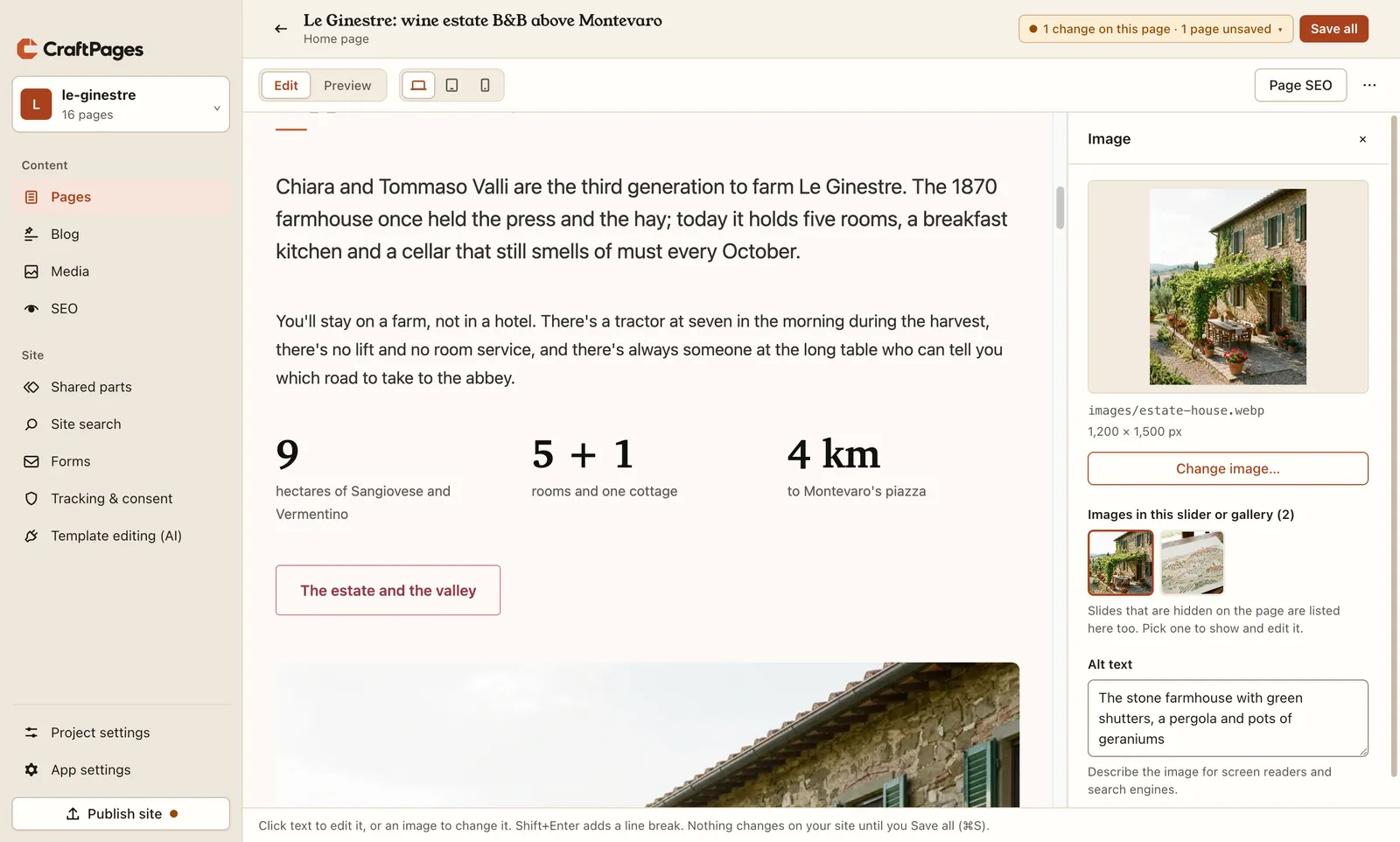
The farmhouse photo on Le Ginestre's home page sits in a small slider. The panel lists every image in it, including the ones you can't see right now, so you can update a slide without clicking through the slider first.
If a photo has no alt text, now is a good moment to write one. Describe what's in it, as you would to someone on the phone: "The stone farmhouse with green shutters, a pergola and pots of geraniums."
Step 5. Check it on a phone
More than half of your visitors will read the site on a phone, and a sentence that fits on a laptop can push a button off the screen on a small one. Above the page there are two switches:
- Edit / Preview. Preview runs the page like a browser would (menus open, sliders slide), with your unsaved edits already in it.
- Desktop / Tablet / Mobile. These show the page at that width.
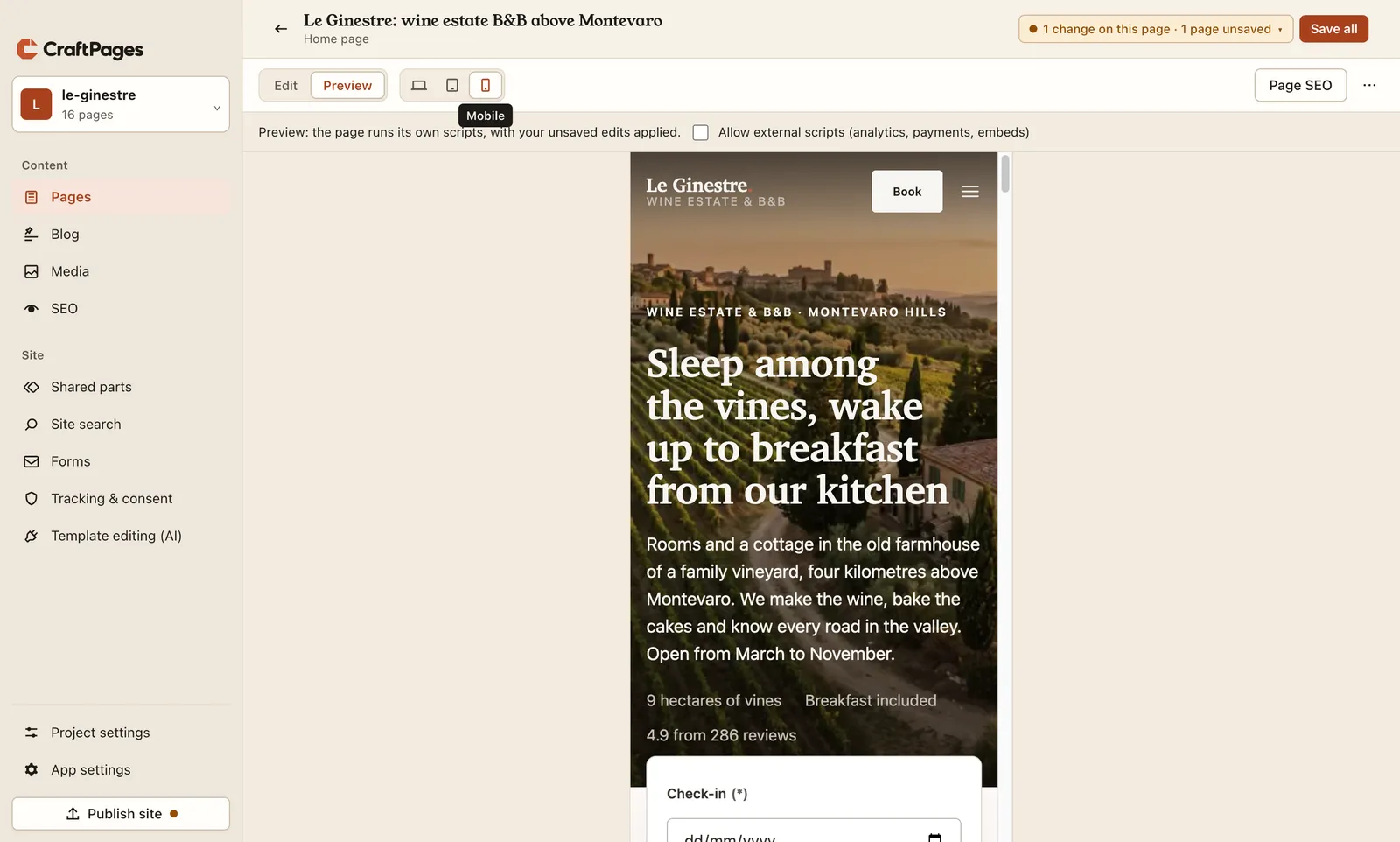
Chiara's sentence wraps onto one more line and the booking box below still fits. Good to go.
Step 6. Save all
Until now, nothing has been written to your files. Your edits are drafts: you can close the page, open another one, come back tomorrow, and they're still there. When you're happy, click Save all (or press ⌘S on a Mac, Ctrl+S on Windows and Linux).
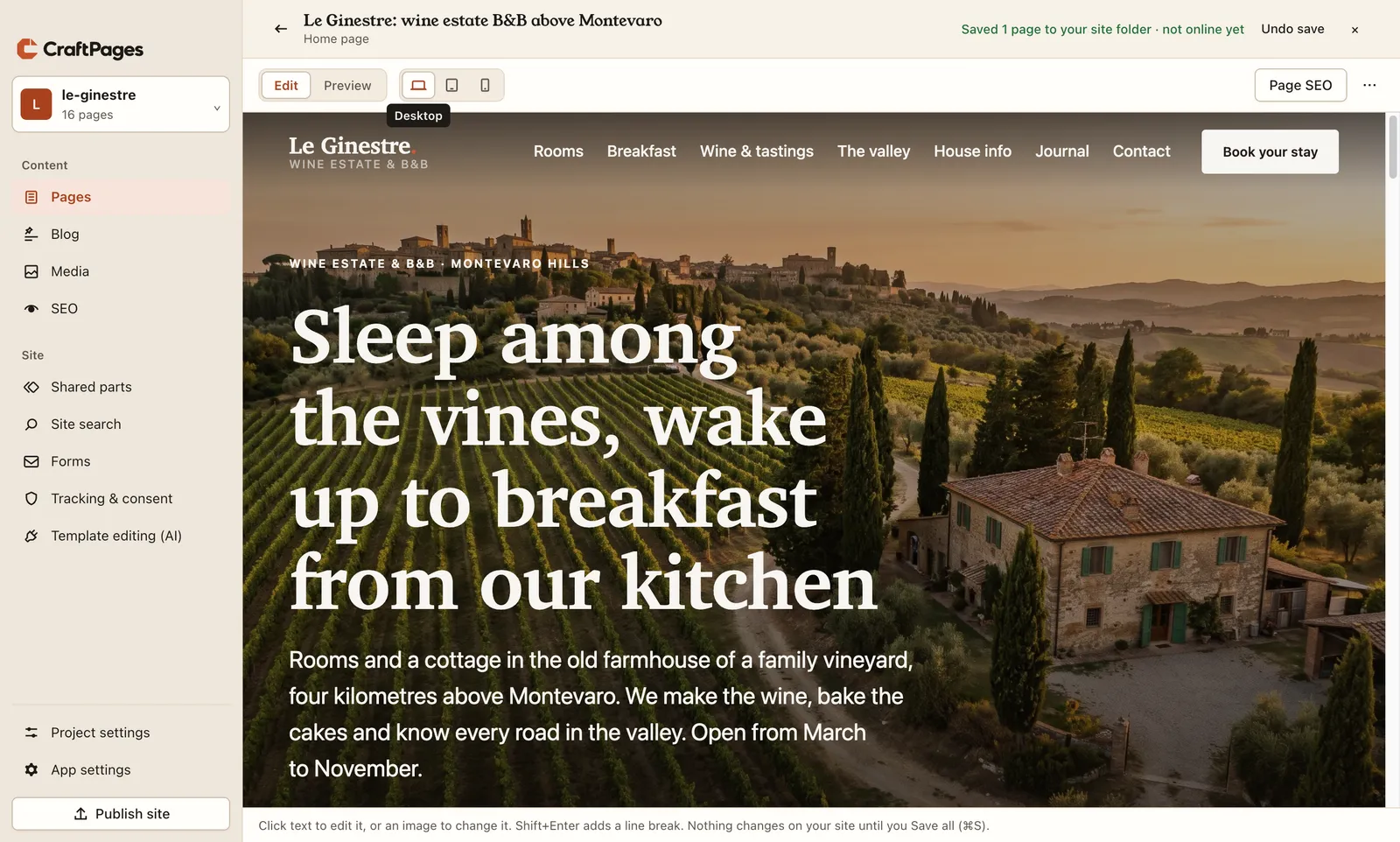
The top bar now says Saved 1 page to your site folder · not online yet, with Undo save next to it if you change your mind. Once you publish, every published version is kept too, and you can put an older one back.
Notice the word folder. Saving changes the files on your computer, not your website. Visitors see nothing until you publish, which is the subject of part 2. You can save twenty times while you work and publish once.
What actually changed in the file
Chiara made two edits on the home page: the opening months, and a line saying dogs are welcome in the cottage. Here is everything that changed in index.html, a 472-line file (the long lines shortened):
93c93
< …know every road in the valley.</p>
> …know every road in the valley. Open from March to November.</p>
152c152
< …which road to take to the abbey.</p>
> …which road to take to the abbey. Dogs are welcome in the cottage.</p>
Two lines. Everything else (the other 470 lines, the indentation, the comments, the attribute order) is exactly as it was, byte for byte. That matters more than it sounds:
- If a developer looks after the site, they can open the same folder in their own editor and see a clean, tiny change, not a reformatted file.
- If you use git, the history shows what you actually did.
- Nothing locks you in. Stop using CraftPages tomorrow and your site is still just your site.
Bonus: the header and footer, once
On a static site, the menu and the footer are copied into every page. Change the phone number in the footer the old way and you edit 16 files. Shared parts (in the sidebar) finds the pieces that repeat across pages and shows where each one appears.
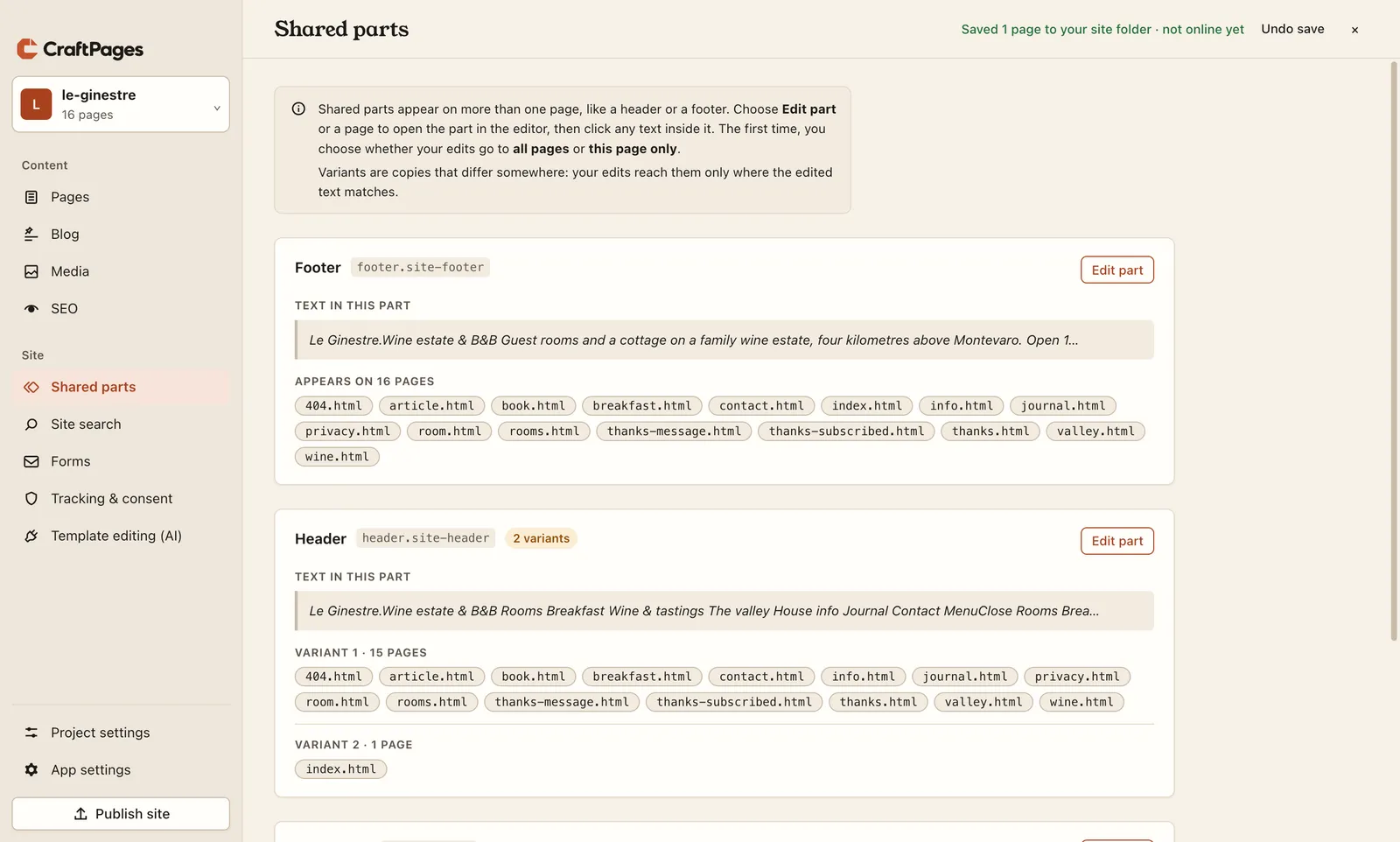
Click Edit part, change the text, and the first time you'll be asked whether the edit goes to all pages or this page only. Le Ginestre's header has two variants because the home page's version differs slightly from the rest. CraftPages keeps them apart, and an edit reaches a variant only where the text you changed matches.
What you didn't have to do
No account, no database, no import, no hosting plan, no plugins to update. The site is still a folder of HTML that any web host can serve, and now someone who has never seen HTML can keep it up to date.
The series
We'll follow Le Ginestre all the way. Here's the plan:
- Edit your website like a document (you are here)
- Put your site online: free hosting on Cloudflare, or the web host you already pay for (FTP and SFTP)
- Analytics and a cookie banner, done properly: Google Analytics from one ID, held until visitors agree
- SEO in an afternoon: titles and descriptions, the site check, sitemap, site icon, 404 page and redirects
- Forms that reach your inbox: a working contact form on a static site, with a free CraftForms account
- A journal (blog) in your own design
- Two people, two computers, one site: sync that combines edits and never overwrites
- A second language: Italian pages next to the English ones, with a language switcher
- Let an AI change the design: template edits you approve one by one
Next time Chiara's two new sentences go live. If you've got your own site folder, download CraftPages and try today's steps on it. It's free, and you can't break anything you can't undo.